Administrator settings
Administrators can customize compliance ready settings on the Flex touchscreen or in the Opentrons App.
See the Flex Instruction Manual for a complete list of Flex robot settings.
Accessing settings
On the Flex touchscreen, tap your user icon at the top right of the screen.
In the Opentrons App, click the Devices page on the left side, then choose Robot Settings. Click the Compliance Ready tab to view available settings.
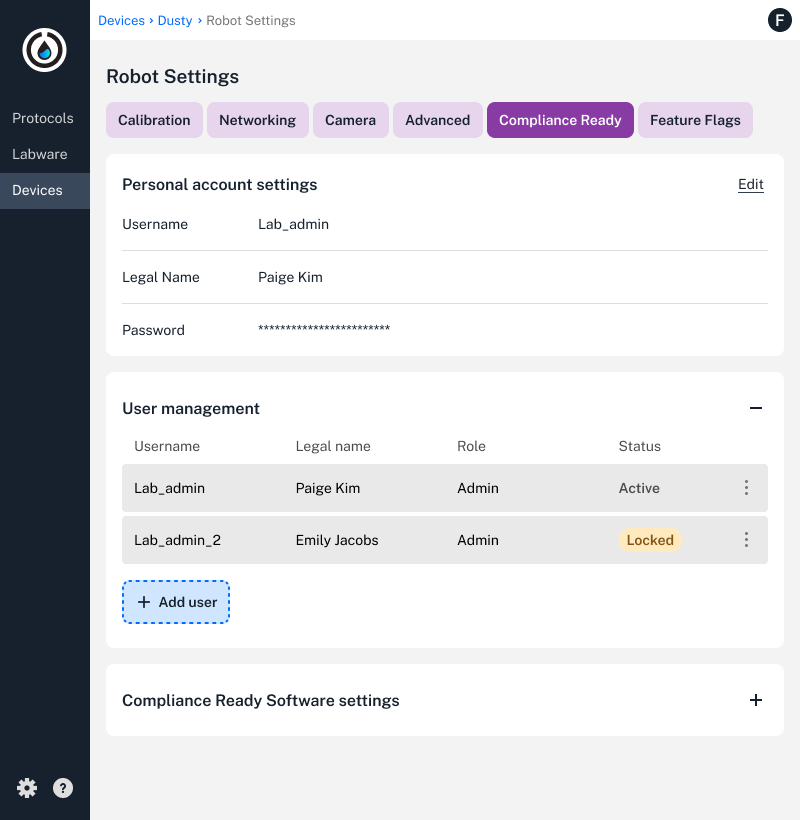
Administrators can view the settings shown above, like personal account settings, user managament, and Compliance Ready Software settings. When logged in, users will only be able to manage their personal account settings.
Changing settings
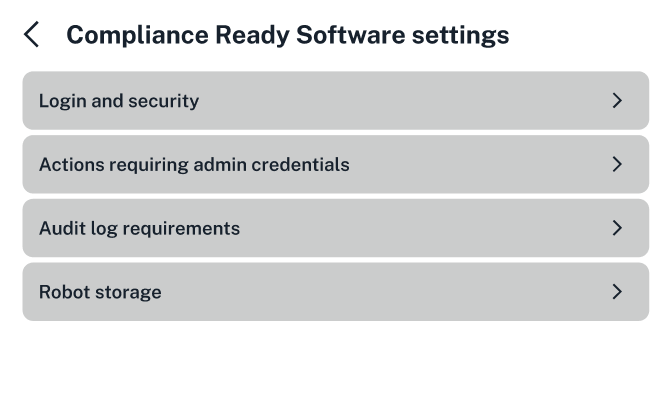
The sections below cover every Compliance Ready Software setting administrators can customize in the Opentrons App or on the Flex touchscreen.
Personal account settings
In personal account settings, every user can update their username, legal name, and password. Usernames are restricted to 20 characters on the Flex.
Users can only make changes to their personal account settings, and can't view or customize settings in User Management or Compliance Ready Software settings.
Personal account settings are the only settings user accounts will see in Compliance Ready settings. All other settings listed on this page are available only to adminstrator accounts.
User management
Administrators can unlock or delete user accounts, reset passwords, or edit user permissions.
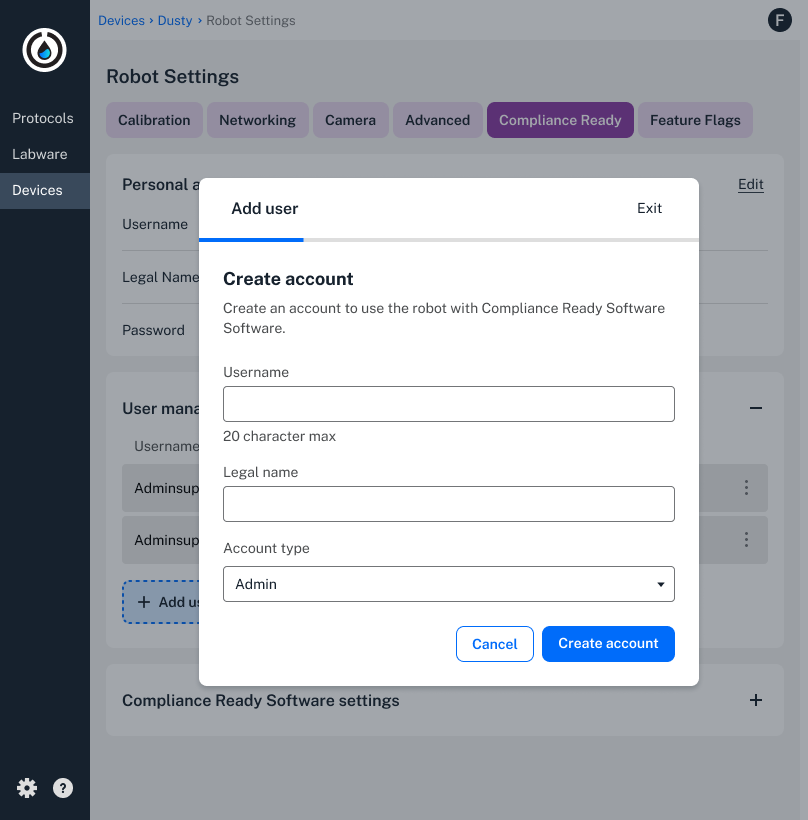
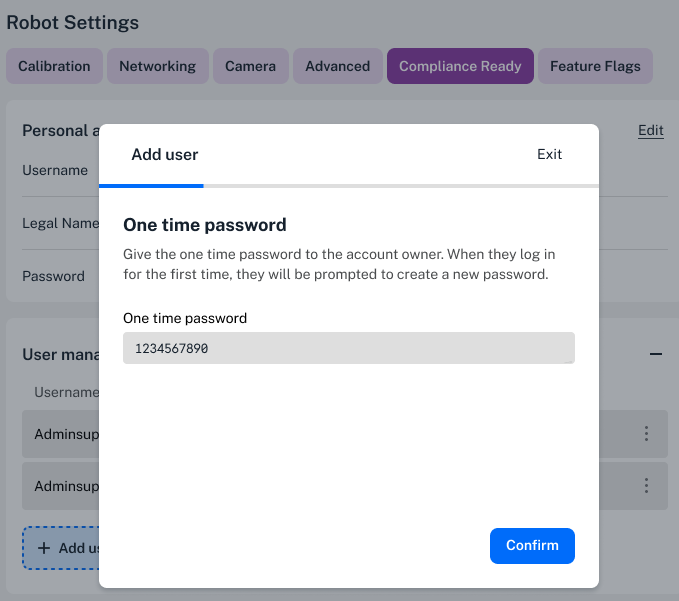
All accounts are locked by default after 5 failed login attempts. An administrator must unlock a locked account and provide the user with their one-time password. Users can choose a new password after successfully logging in.
If your lab loses access to all administrator accounts, Opentrons offers a paid on-site recovery service.
Compliance Ready Software settings
Administrators can make changes to security, documentation, and storage settings to customize your lab's daily user experience.
| Setting | Options |
|---|---|
| Login attempts |
|
| Passwords |
|
| Screen timeout |
|
| User permissions |
|
| Documentation |
|
| Files |
|
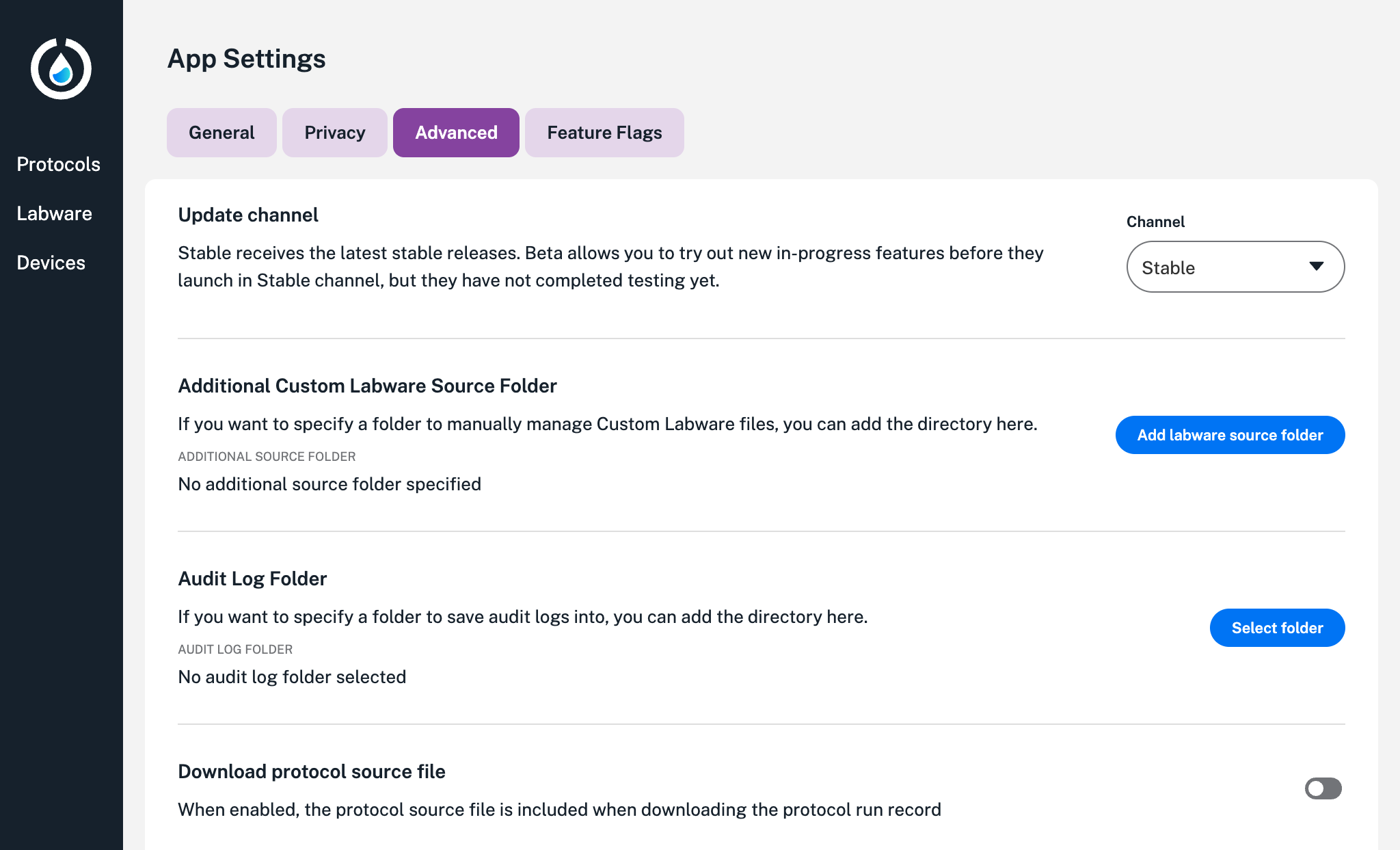
Audit log folder
You can choose a location to automatically download and save files from the Opentrons App.
Click the in the lower left to access App settings. Select the Advanced tab and click Select folder to choose a storage location on your computer.
If robot settings, like your Flex's name, ever change, you may need to repeat this process.