Using the Camera
Every Flex comes equipped with a built-in high-resolution camera. Starting with robot software version 8.8, you can control the camera via the Opentrons App or the touchscreen.
When enabled, the camera provides:
- Live streaming: watch a real-time video feed of the deck during a protocol run.
- Step-based image capture: add still photography as a step in your protocol.
- Troubleshooting assistance: automatically record the deck state in response to a crash or error.
- Image downloads: access still images saved in the protocol run files.
Turning the camera on and off
The camera is off by default. To turn the camera on and access its features:
- From the Opentrons App, click Devices and locate your robot.
- For your selected robot, click the three-dot menu (⋮) and then click Robot Settings.
- Click the Camera tab to open the camera settings.
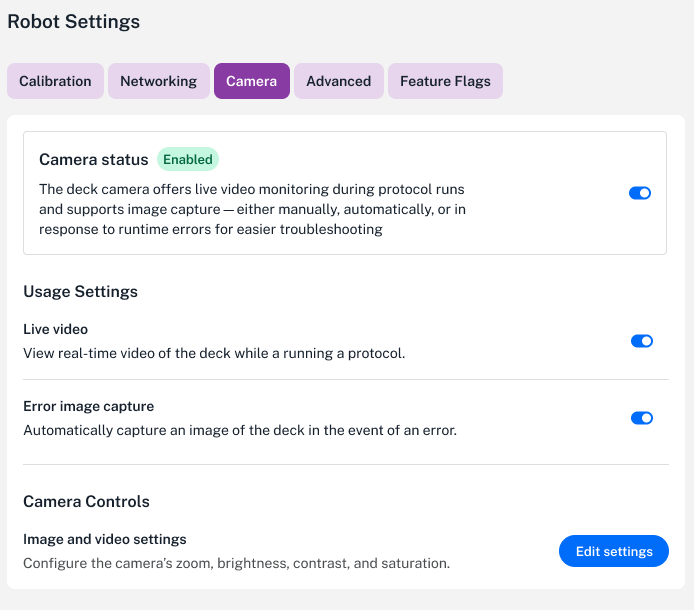
- Click the Camera Status toggle to enable or disable the camera. Turning the camera on exposes other camera features and image controls.
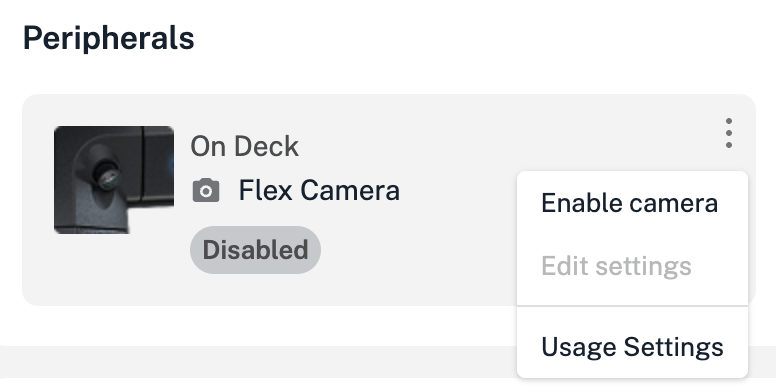
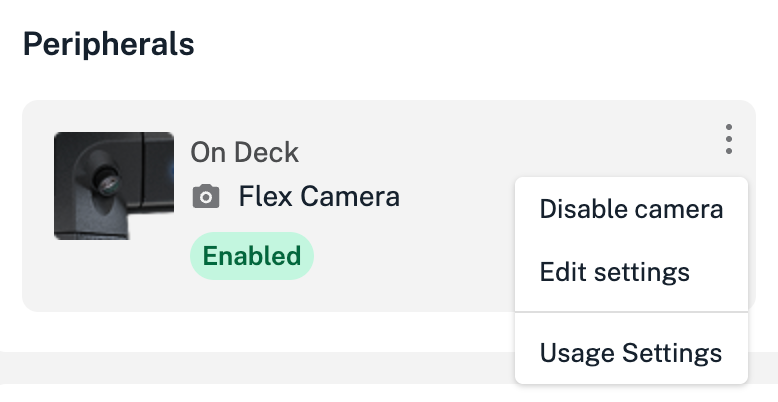
You can also turn the camera on and off from the Peripherals section of the robot details page.
Other camera settings
These settings and controls are located under the Camera tab on the Robot Settings screen.
Usage Settings
Starting with robot software version 9.0, these settings and image capture options allow you to:
- Stream real-time video from the deck while running a protocol.
- Automatically capture a deck image when an error occurs.
Camera Controls
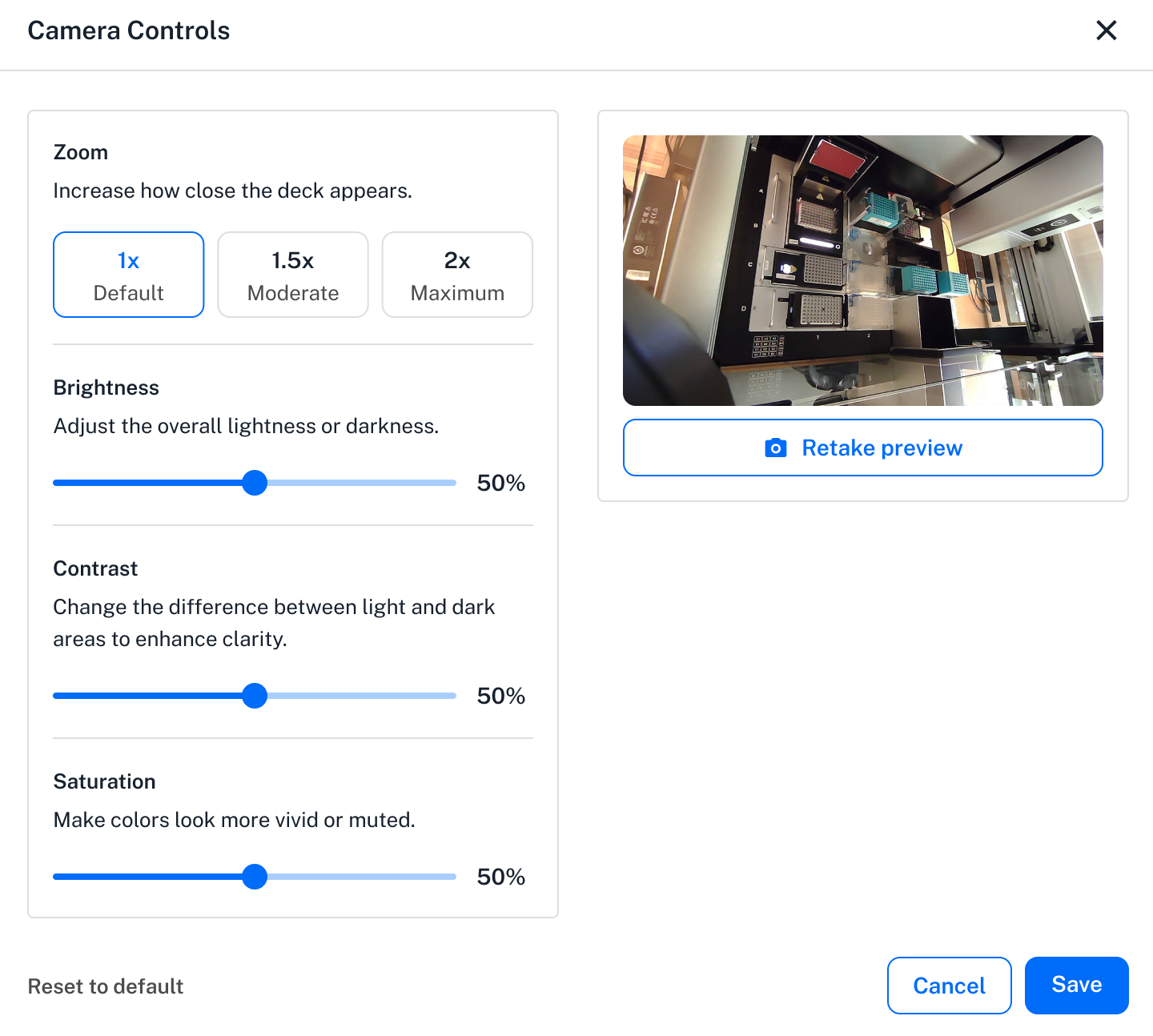
These controls allow you to zoom in on the deck and provide image correction features to adjust brightness, contrast, and color saturation. Click Edit settings from the Camera Controls section to access these features.
Viewing the live camera feed
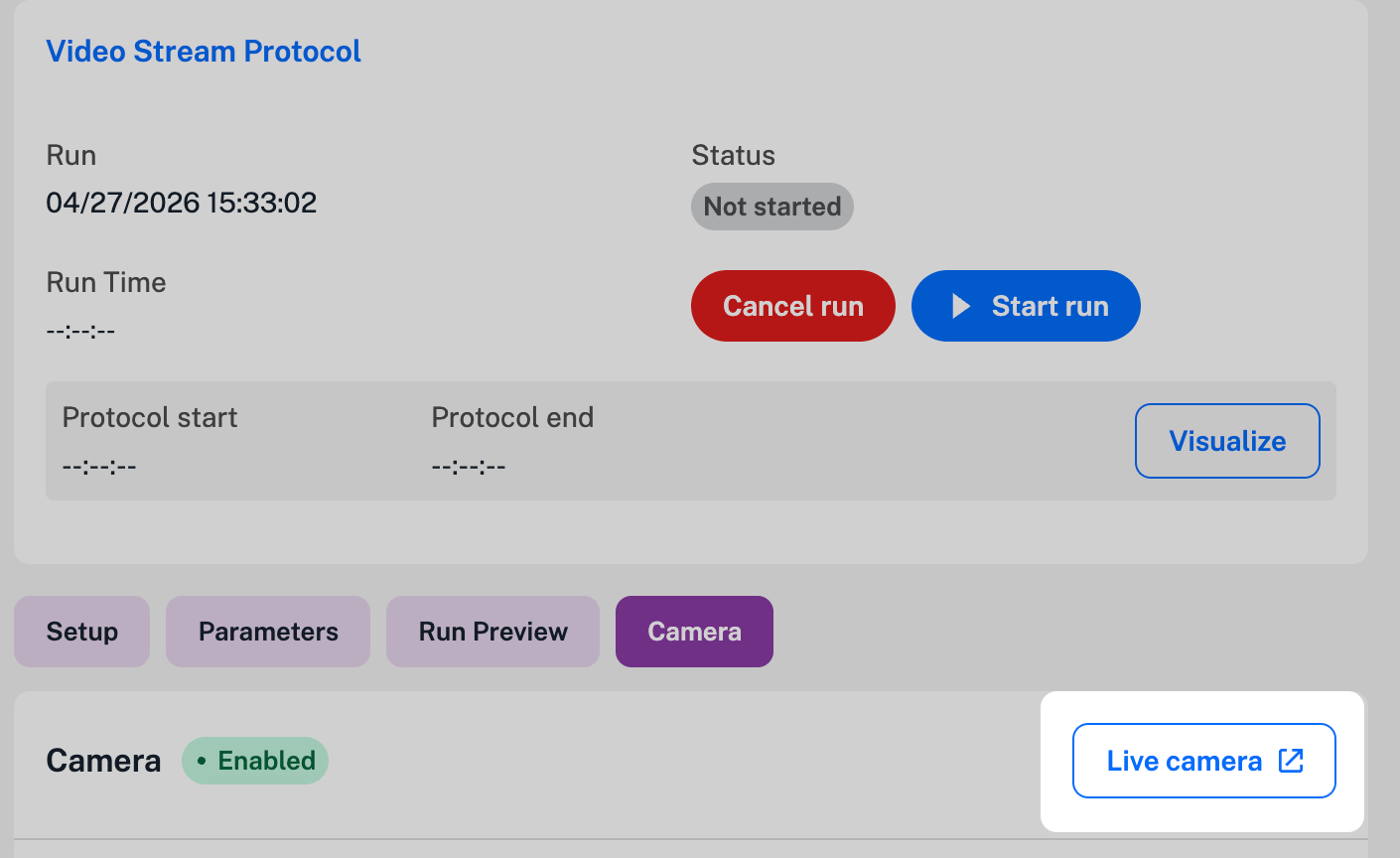
Live video streaming is available in the Opentrons App when the camera is enabled and the robot is running a protocol. To watch the feed, run your protocol and click the Live camera button. This opens a small window that streams live video as the robot works through the protocol steps. The video stream stops automatically when the protocol ends.
Note
Flex cannot save live video streamed during a protocol run.
Capturing and downloading still images
To capture still images from a Flex, add a camera step to your protocol in Protocol Designer or use the capture_image() method in the Python API.
Still images taken during a protocol run are available for download from the recent protocol run files in the Opentrons App.