Settings
During Opentrons Flex Compliance Ready Software activation, an Opentrons-trained representative can help you change settings to customize your day-to-day experience.
Adminstrator accounts have the option to change these settings again later. For more, see the full list of administrator settings.
Download files after a run
All Flex robots have a limited storage capacity for the files they generate. To save space, your compliance ready Flex won't store audit logs on the robot by default. Instead, you'll need to download them from the Opentrons App.
When this setting is on, all users will be prompted to download audit logs in the Opentrons App immediately after a protocol run.
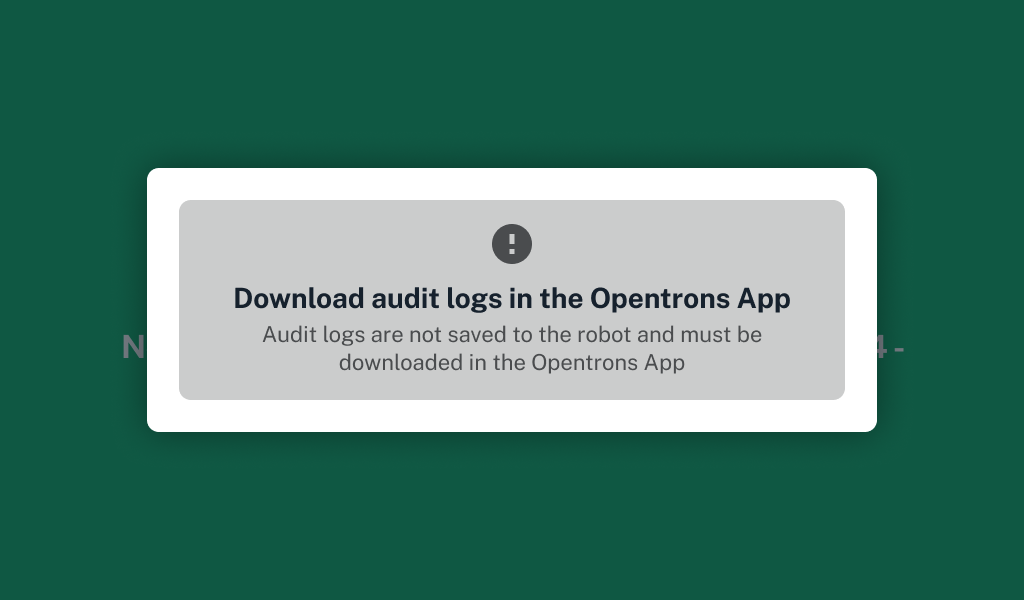
Administrators can change this setting in the Opentrons App or on the Flex touchscreen:
- Log in to your account.
- Access your robot's settings either in the Opentrons App (click the three-dot menu on the right) or on the Flex touchscreen (tap the user account icon in the top right).
- Select the Compliance Ready tab or Compliance Ready Software settings option.
- Under Audit log requirements, toggle the Require downloading audit logs in the Opentrons App at the end of a protocol run setting.
- Document your reason for updating this setting.
Download folder
When you require users to download audit logs from the Opentrons App, you can also configure the app to download all logs to a default storage location.
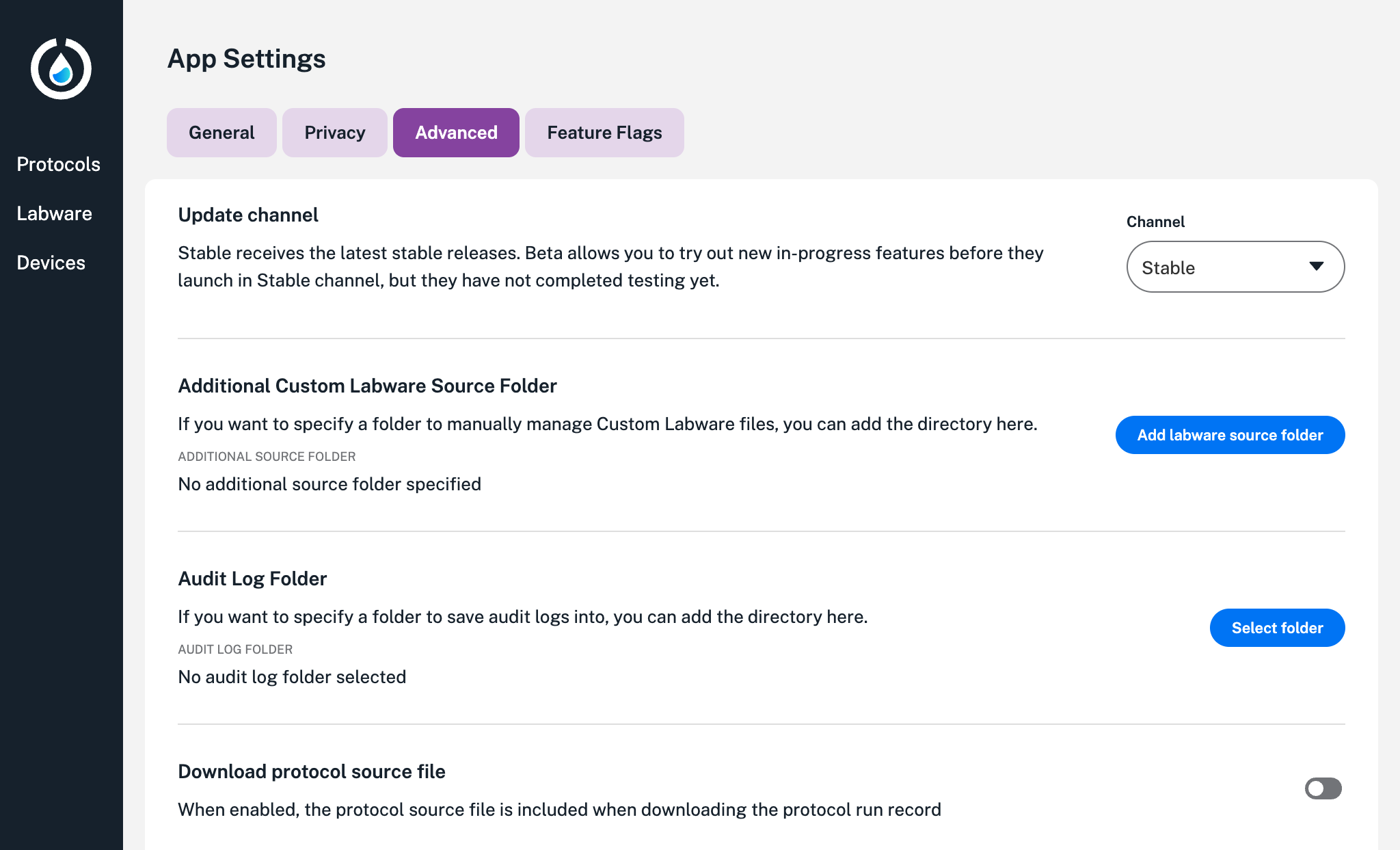
Click the in the lower left to access App settings. Select the Advanced tab and click Select folder to choose a storage location on your computer.
If robot settings, like your Flex's name, are ever changed, you may need to repeat this process.
Note
There's more than one way to save your files. You can attach a USB drive and copy files to it from the Flex touchscreen. Then, attach the drive to your computer and save them in your preferred location.