Devices
User actions, like setting up and running a protocol, require documentation on a compliance ready Flex. You can use a built-in or external keyboard to make adding documentation easier on the Flex touchscreen.
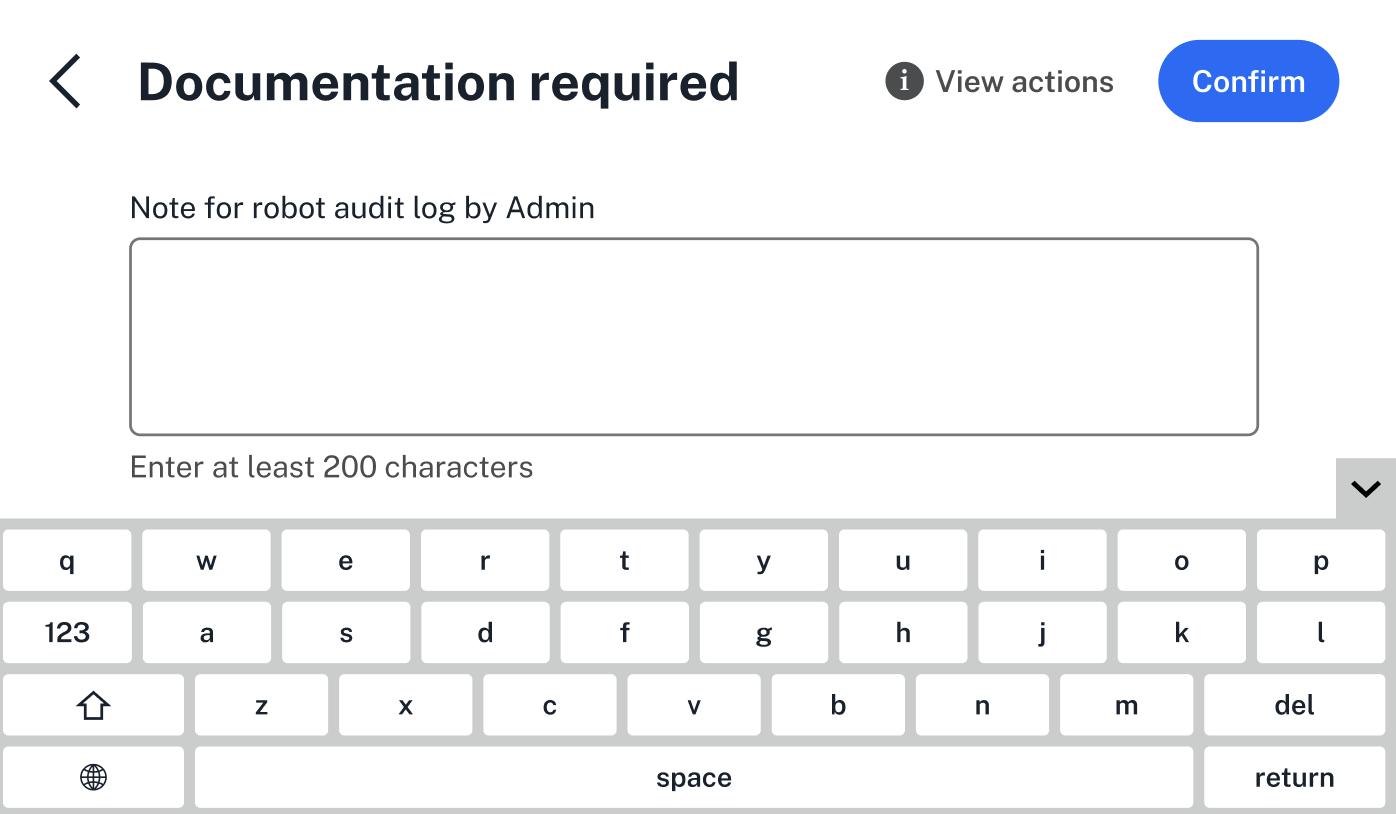
The keyboard is available in English and in Mandarin. Change your preferred langauge in the Flex's settings. Click the gray arrow on the right side of the Flex touchscreen to collapse the keyboard.
The Flex also supports external keyboards connected via USB. When you use an external keyboard, the keyboard on the Flex touchscreen is hidden by default.
If you choose to download files from the Flex touchscreen, you'll need to use an external storage device.
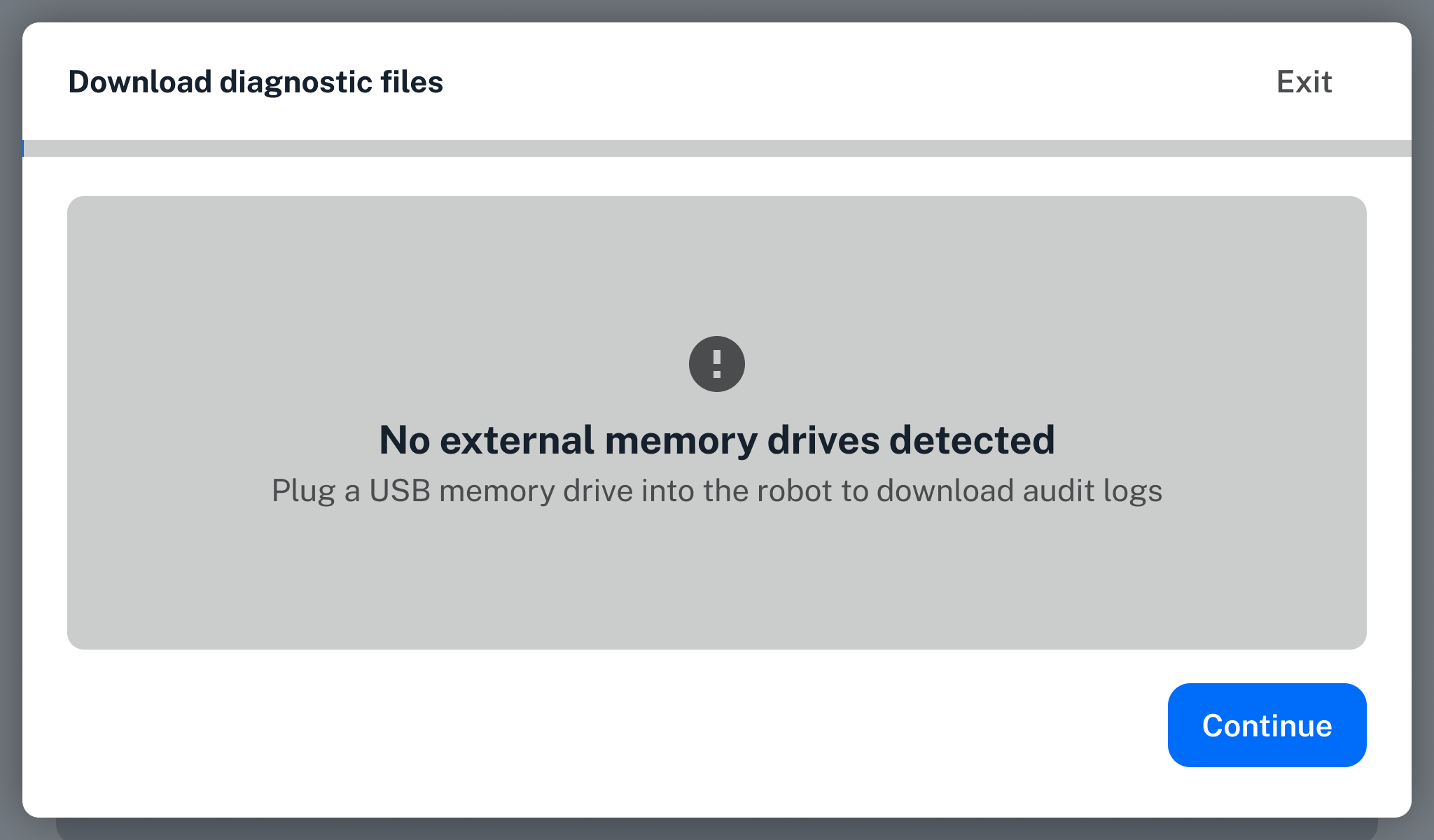
You can connect a USB storage device using one of the Flex's USB ports. View all connected devices by choosing Devices on the Flex touchscreen's Settings tab.