Flex Diagnostic Files
All Flex robots generate diagnostic files that record movements and system processes. During normal operation, there's no need to download or examine these files. However, if a failure or malfunction occurs, Opentrons Support may request these files, as they provide detailed information that helps identify and resolve problems with the robot.
This article describes the types of diagnostic files your Flex generates and explains how to download and manage them using the file manager.
Understanding Flex diagnostic files
In an idle state or during a protocol run, your Flex constantly writes data to several different files. Each type of file tracks data generated by different parts of the robot and its attachments.
Starting in robot software version 10.0.0, you can access these files from the file mananger, where you'll be able to download two types of files: troubleshooting logs or calibration logs.
The following table summarizes the data captured in each troubleshooting log.
| Diagnostic file | Description |
|---|---|
| API |
|
| Audit server |
|
| Auth server |
|
| CAN Bus |
|
| Kernel |
|
| Remote access |
|
| Serial |
|
| Server |
|
| Touchscreen |
|
| Update server |
|
Your Flex also generates calibration logs. These .json files contain pipette and module calibration data.
The records in both troubleshooting and calibration logs can be difficult to interpret and understand, but they're valuable for troubleshooting purposes. If you ever need to download the log files, the following instructions will step you through that process.
Note
Some of the files listed above, like auth_server.log, audit_server.log, and remote_access.log are especially relevant on robots with Opentrons Flex Compliance Ready Software installed.
Compliance ready Flex robots also generate additional files called audit logs.
Downloading Flex files
To download your robot's diagnostic files from the Opentrons App:
-
Click Devices and locate the robot that you want the logs from.
-
For your selected robot, click the three-dot menu ( ⋮ ) and then click Robot settings.
-
Click the File manager tab to download and manage files.
-
Choose the type of file you need to download. You’ll be prompted to choose a save location when the log files are ready to download.
To download your robot's diagnostic files from the Flex touchscreen:
-
Tap the Settings tab and choose File manager.
-
Choose a tab at the top of the screen: Diagnostic files or Protocol Run Records.
-
Choose the files you'd like to download. You'll need to attach a USB device to your Flex to save files to.
Note
Flex produces a single .zip file that contains the troubleshooting logs. The file name includes the robot’s name followed by _logs.zip. For example, if your robot is called “Flex1," the log file will be named Flex1_logs.zip.
Calibration logs are downloaded as a single .JSON file.
Note
In previous robot software versions, you can download files from your robot's settings in the Opentrons App. Click the Advanced tab, then Download logs.
To read the logs, double-click the downloaded .zip file to decompress it. The individual logs will expand into a new folder in the same location as the downloaded file. Any text editor should be able to open these .log. and .JSON files.
Managing Flex files
You can access the Flex file manager in the Opentrons App or on the Flex touchscreen.
On your robot's details page in the Opentrons App, click the three-dot menu ( ⋮ ) and choose Robot settings. Click the File manager tab to download and manage files.
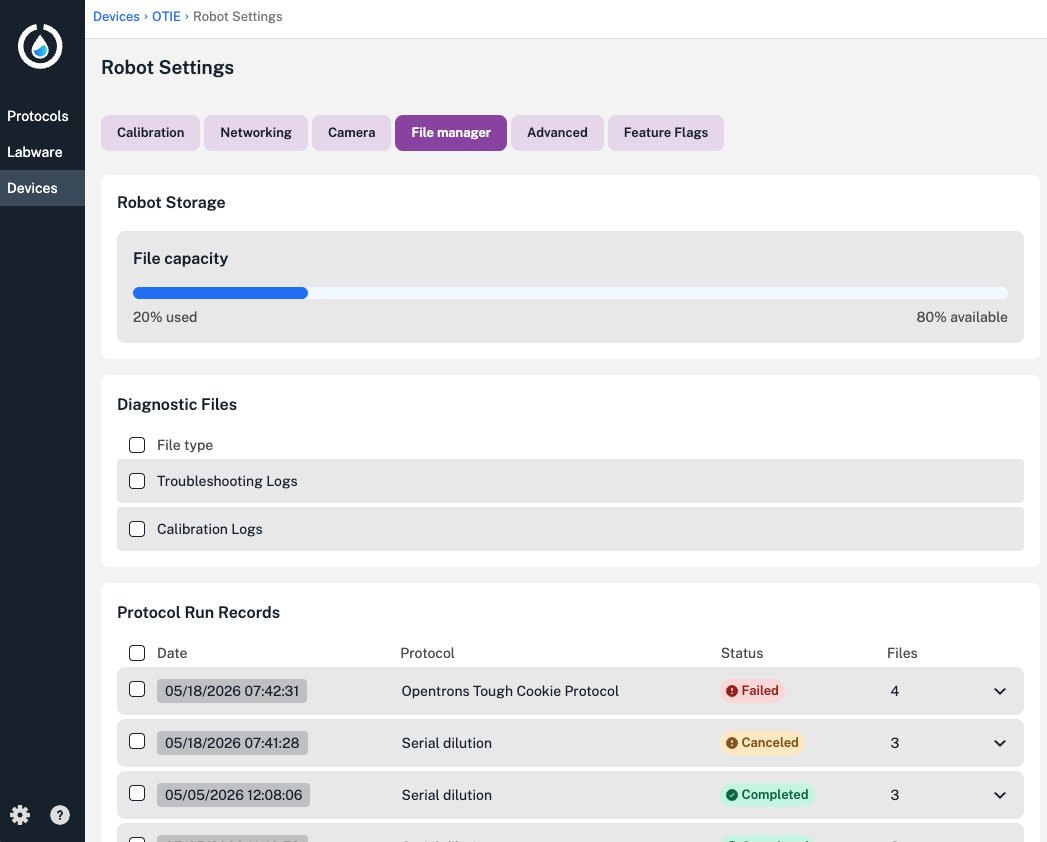
Click the boxes on the left to select files or file types for download. From the file manager, you can download diagnostic files or protocol run records, which contain specific data for each individual protocol run.
The file manager also includes a look at robot storage, which is limited to data from 20 recent protocol runs. When you select protocol run records, you can choose between downloading and deleting those files. Your Flex will automatically delete protocol run records when it reaches its storage capacity.
On the Flex touchscreen, tap the Settings tab, then choose File manager from the list of options.
Choose between the Diagnostic Files and Protocol Run Records tabs.
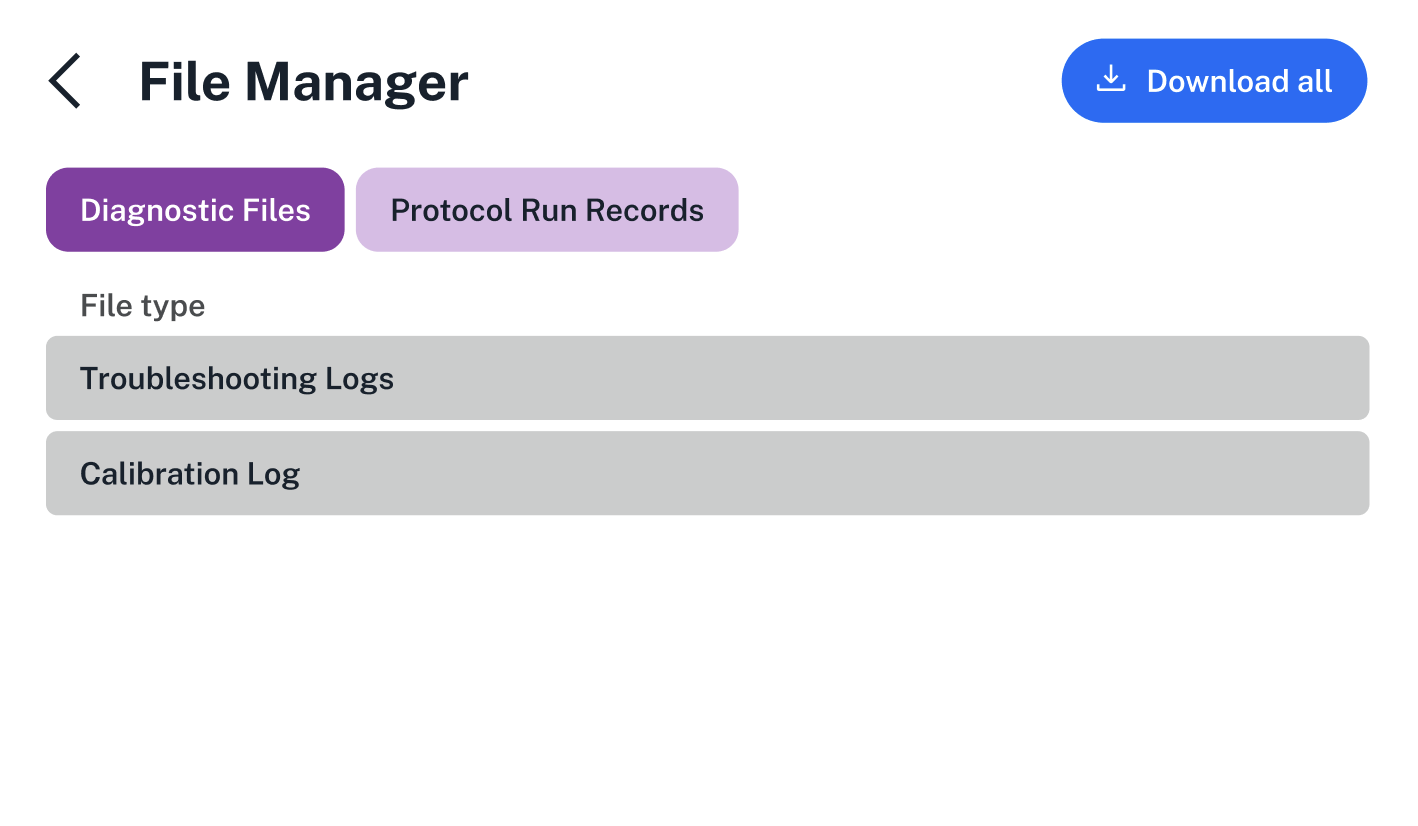
In the Protocol Run Records tab, use the three-dot menu ( ⋮ ) to download an individual file or tap Download all at the top of the screen.
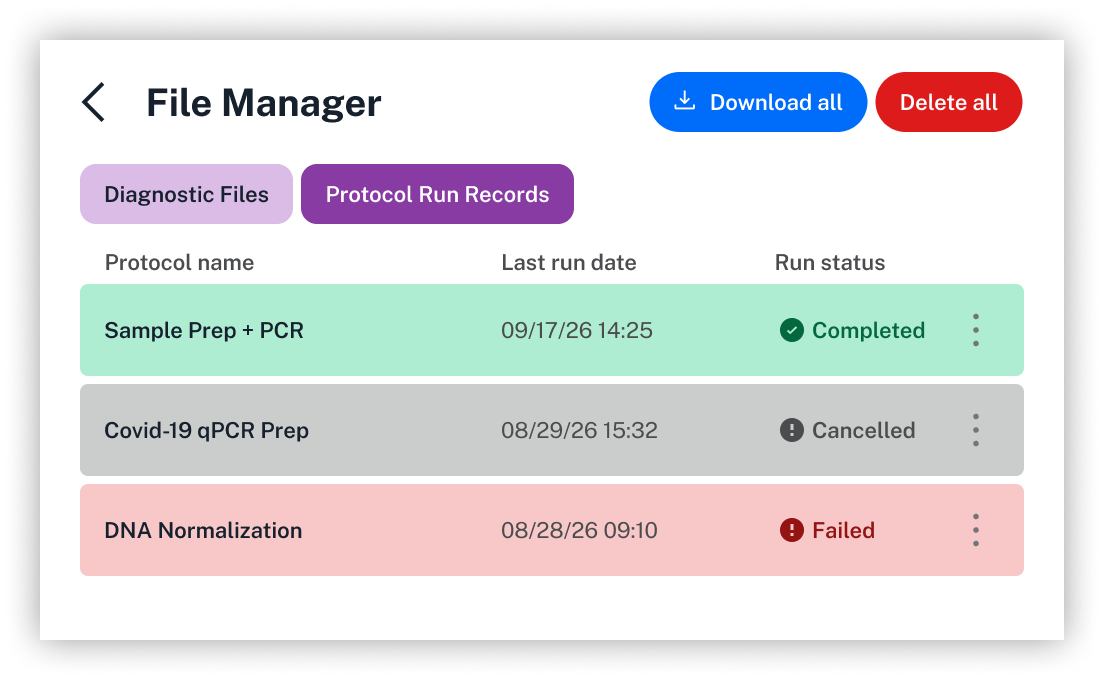
Just like in the Opentrons App, you can download protocol run records individually or all at once. You'll need to attach a USB drive to your Flex to download files directly from the touchscreen.