Completing a protocol
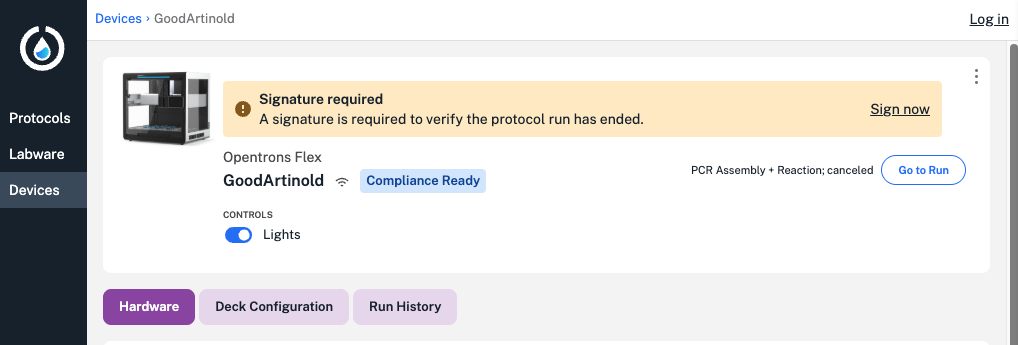
When a protocol is complete, you'll need to sign for the run in the Opentrons App or on the Flex touchscreen. Signing for a run is the final checkpoint to completing a protocol run, and adds your legal name and user ID to every user action captured for the protocol.
Note
By default, only administrator accounts can sign for a completed protocol run. Use Compliance Ready Software settings to:
- Allow any user to sign for a protocol run.
- Choose whether a signature should be required after a protocol run.
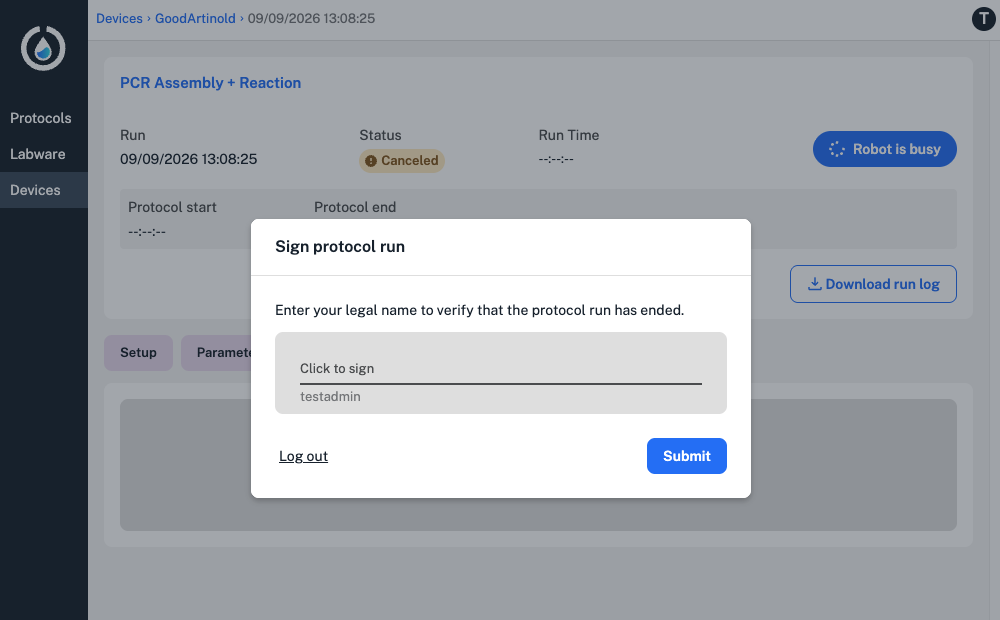
Until you sign, the protocol run isn't complete in the Opentrons App or on the Flex touchscreen. You'll be blocked from completing other actions until signing when this default setting is on.
After signing, your Flex will prompt you to download audit logs. Audit logs are files the Flex generates containing data like responsible users, timestamps, and documentation for every robot action.
To conserve space, these files are not saved to the Flex by default. Instead, you'll need to download them from the Opentrons App after signing for your protocol run.
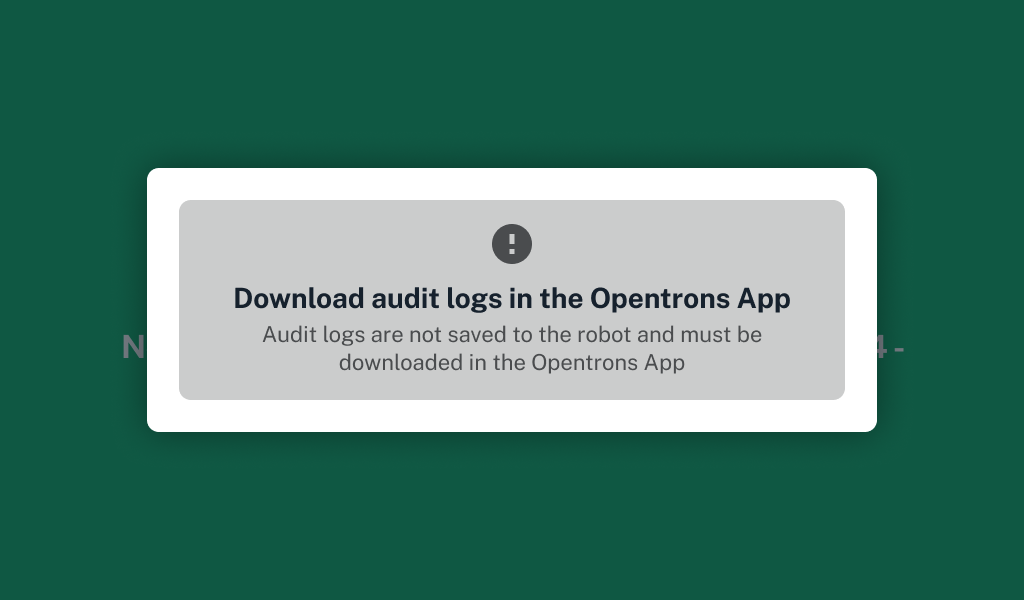
Administrators can change this setting to save audit logs locally on your Flex. Remember that you'll still need to frequently download and delete logs from the robot.
When you're finished, end your session on the Flex by logging out:
- In the Opentrons App, click the account icon in the top right and choose Log out.
- On the Flex touchscreen, press and hold the top edge of the screen. Drag the opaque screen that appears to the bottom of the touchscreen, then release to log out.
You can download additional protocol files before you log out, or in your next session.