Document actions
Required documentation is an important part of Opentrons Flex Compliance Ready Software. Whenever administrators and users make changes to modules, set up a protocol, detach a pipette, or run a protocol, they'll need to document their reason for doing so.
Their documentation, along with their name and user ID, become a part of the files your compliance ready Flex generates.
This section covers how users will add documentation. For a full list of user actions that require documentation, see the Documented Actions appendix.
Note
Opentrons Flex Compliance Ready Software adds required documentation checkpoints to the Opentrons App and Flex touchscreen. Users should follow their lab's own procedures to add sufficient documentation.
Adding documentation
Opentrons Flex Compliance Ready Software adds checkpoints to prompt all users to document nearly every robot and protocol action they complete on the robot. A "Documentation required" screen opens in the Opentrons App or on the Flex touchscreen when users click or tap to complete actions like pipette calibration or protocol setup, and blocks users from moving forward until they've added their text.
On the Flex touchscreen, users can use the on-screen, collapsible keyboard to add text on the touchscreen.
Tip
Flex also supports an external keyboard, attached via USB, to type documentation.
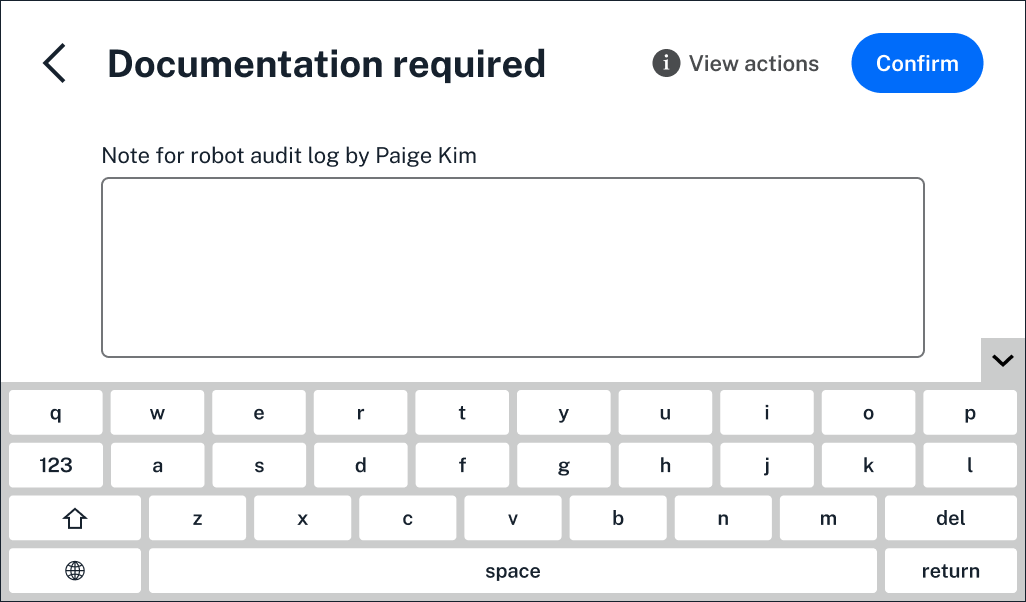
Whenever an action requires documentation, you won't be able to bypass this screen. Once documentation is added, your Flex will proceed with the action.
If you didn't mean to complete the action, you can always tap the back arrow in the upper left.
Users can also add text in the Opentrons App. Here, you'll also see a list of actions requiring documentation on the right.
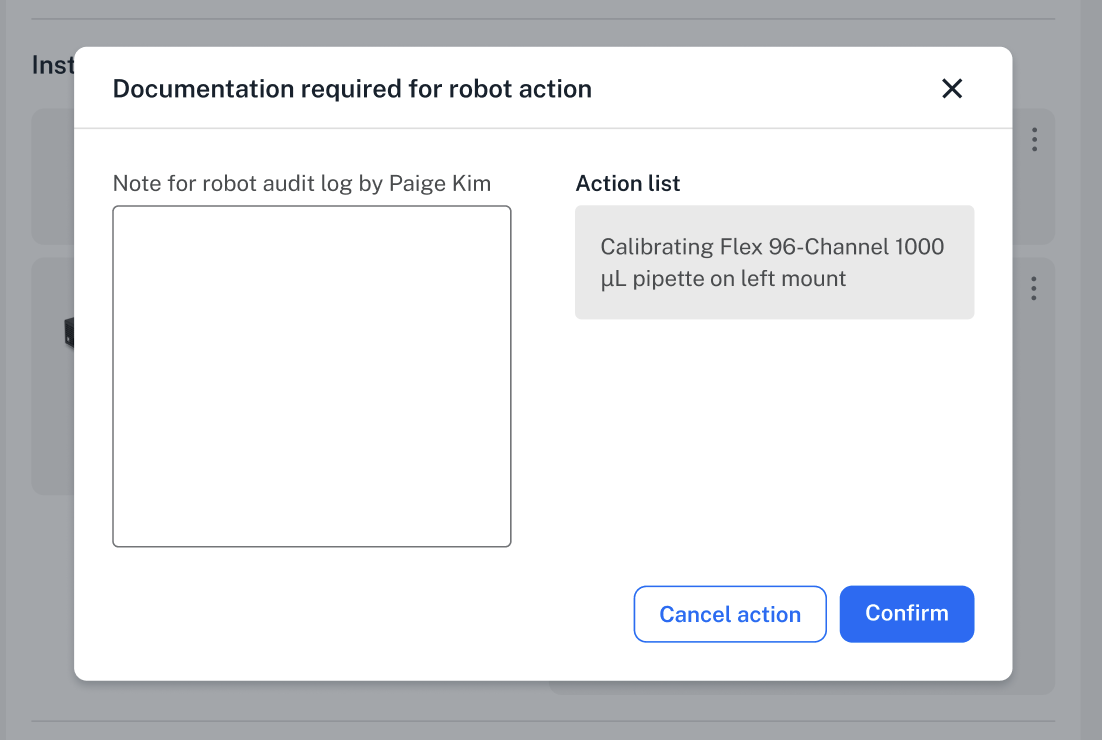
Click Cancel action if you didn't mean to complete the action.
You'll see the same screen on the Flex touchscreen and in the Opentrons App every time you need to add documentation, no matter which step you're on. In most cases, your Flex won't complete the action until you add documentation and click Confirm to save your text.
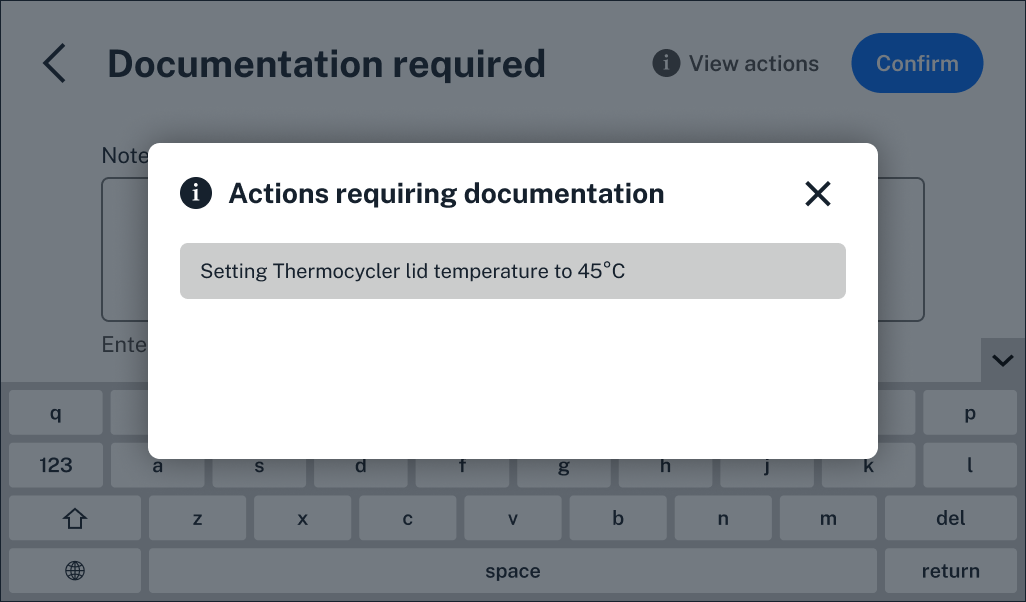
View actions
While working on the bench, you'll see several prompts to add documentation in the same workflow. In the Opentrons App, you'll always see a list of actions requiring documentation in the same place you enter documentation.
On your Flex itself, the "Documentation required" screen fills the entire touchscreen. In case you've stepped away or simply forgot which action you started, you can tap View actions in the upper right.
Documentation settings
Administrators can customize documentation settings in the Opentrons App. Click the three-dot menu to the right of your robot's name to access Robot Settings. Then, choose the Compliance Ready tab. Under Audit log requirements, administrators can update settings:
- Require documentation for robot actions: on by default.
- Minimum length of documentation for robot actions: default of 20 characters.
If you choose to no longer require documentation for robot actions, the user ID for the currently logged in user will still be attached to every user action in the protocol and included in the audit log. However, the Opentrons App and Flex touchscreen will never prompt users to enter documentation. Users without appropriate credentials will still be blocked from completing certain actions and updating settings.
See the complete list of administrator settings for more.