Logging in
You'll start by logging in. Compliance Ready Software restricts access to your Flex through both the touchscreen and the Opentrons App.
If your lab uses more than one Opentrons robot, you can still use the same Opentrons App to control them. Before you log in, you'll be blocked from completing actions like running protocols, changing module status, or updating robot settings on any compliance ready Flex robots.
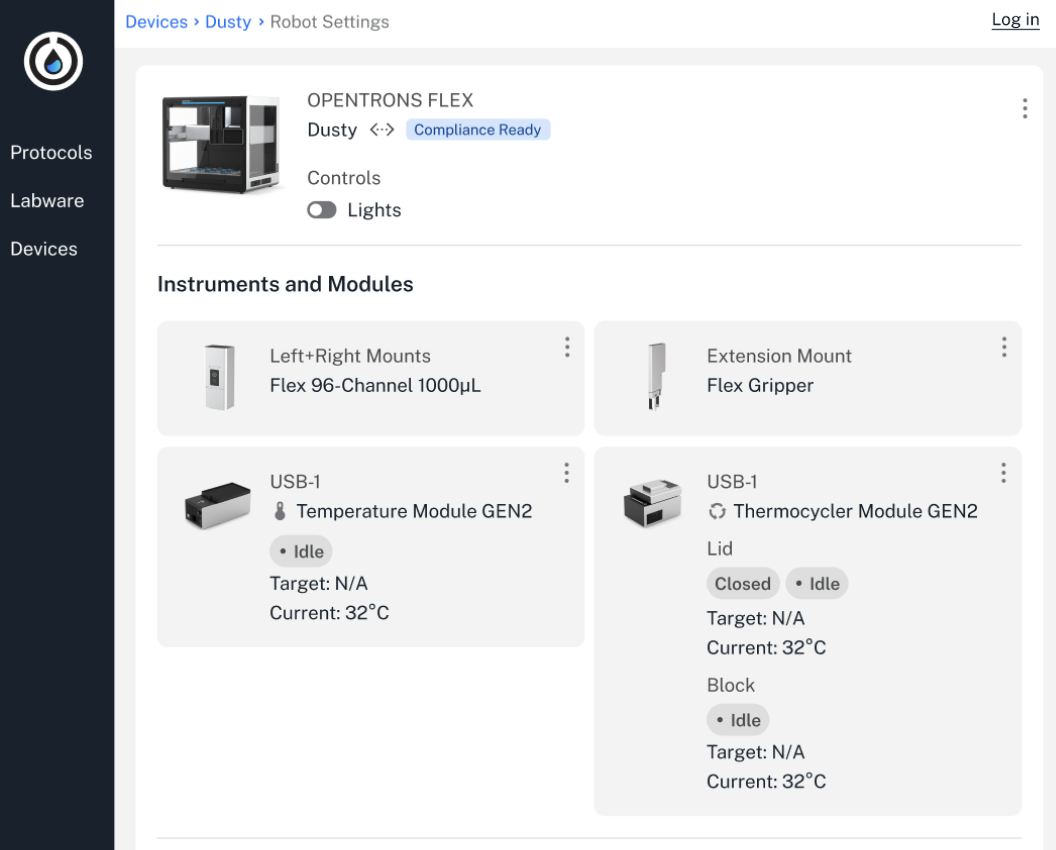
Until you're logged in, you'll only be able to view some information in the Opentrons App:
- Robot status, including attached hardware and deck configuration.
- Protocol run history, including viewing and downloading protocol run records.
- Protocols imported into your Opentrons App, in the Protocols tab on the left.
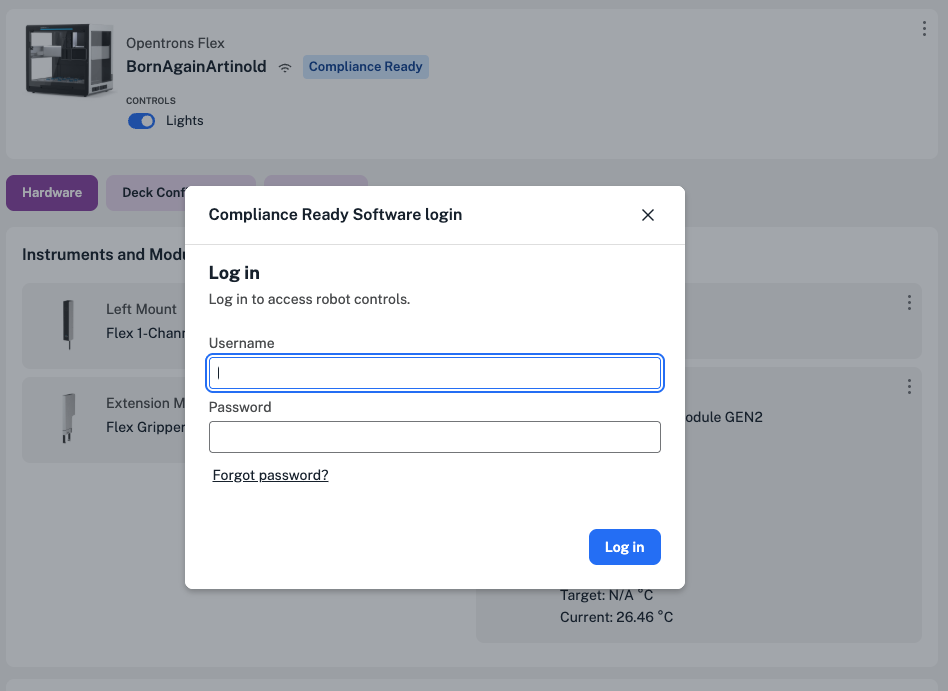
You can log in by clicking Log in in the upper right. The Opentrons App will also prompt you to log in whenever you attempt to complete an action that requires credentials or documentation.
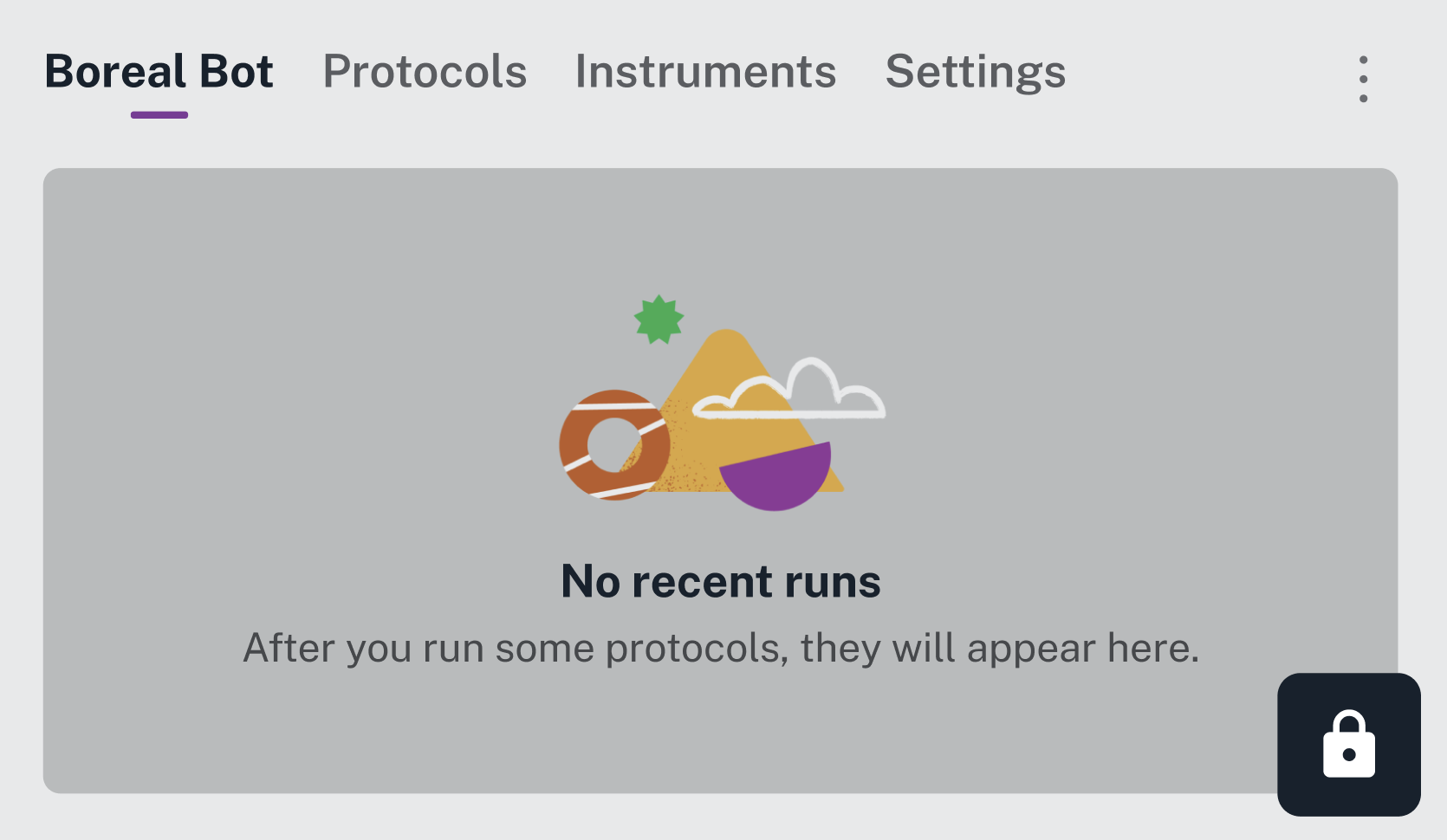
Your Flex touchscreen will appear locked until you log in, with a lock icon in the lower right.
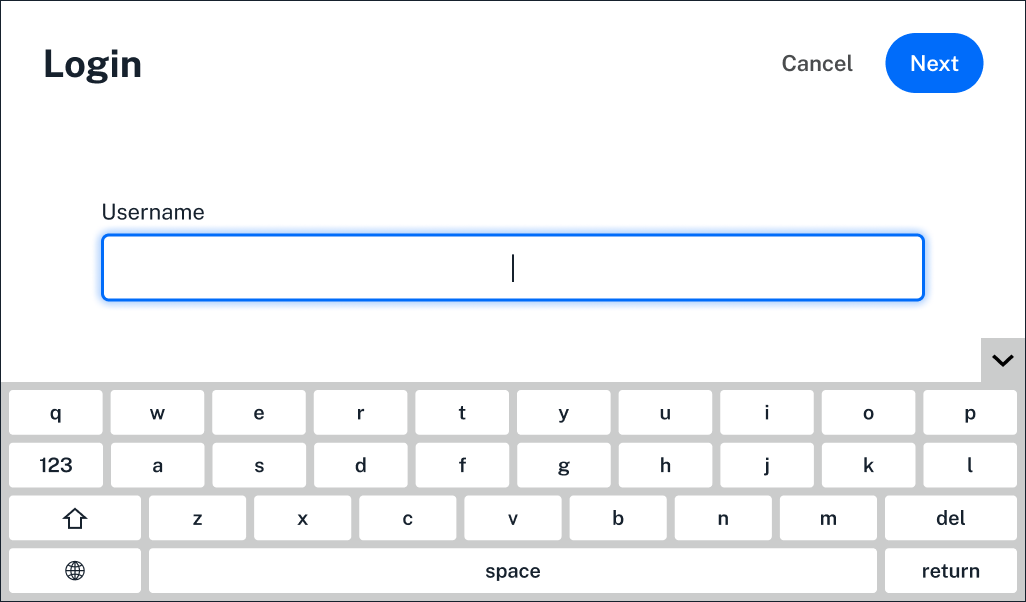
Any interaction with the screen will prompt you to log in to an account.
When logged in on the Flex touchscreen or in the Opentrons App, the user's icon is displayed in the upper right.