Resetting the Robot
Purpose
You may need to reset your OT-2 to fix software errors, calibration problems, unusual behavior, or as part of routine maintenance. The checkboxes in the Device Reset section of the Opentrons OT-2 App let you select data to delete before restarting the robot. Depending on your selections, you may need to calibrate the OT-2 or re-run Labware Position Check after restarting.
Warning
A full reset clears all stored data from your OT-2. This includes robot calibration data, labware offset data, protocol run history, boot scripts, and any saved SSH keys.
Steps
Follow these instructions to perform a full reset on your OT-2:
-
From the Opentrons OT-2 App, click Devices and locate the robot you want to reset.
-
For your selected robot, click the three-dot menu (⋮) and then click Robot Settings.
-
Click the Advanced tab to open the advanced settings page.
-
In the Device Reset section, click Choose reset settings.
-
Select the data categories you want to delete. To perform a full factory reset, select all available checkboxes.
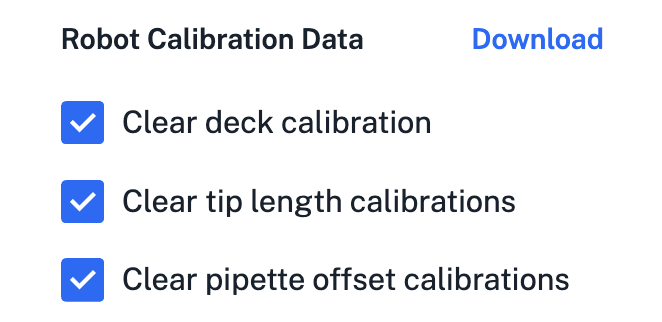
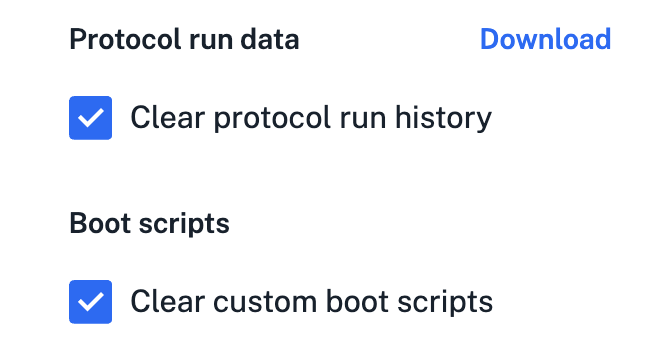
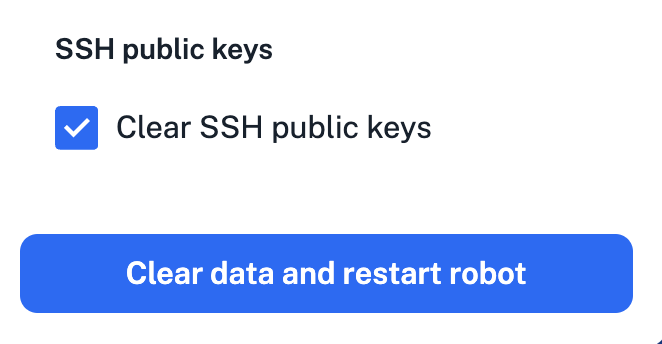
Device Reset options in the app. -
Click Clear data and restart robot. Your OT-2 will erase the selected data files and restart.
Be sure to perform any required calibrations after the robot reboots.