Compliance Ready Software
Opentrons Flex Compliance Ready Software is a set of optional, permanent, paid features that enable 21 CFR part 11–ready operation on your Flex. The software:
- Captures every user action with timestamps, required documentation, and robot-generated records and files.
- Verifies user access, including required logins and different permissions for administrators and users.
The software is permanently installed during on your Flex on-site by a trained Opentrons representative. Because Compliance Ready Software is designed to secure your Flex in your lab, some features like Jupyter notebook access, command line operation, and Quick Transfer protocols are permanently disabled once the software is activated.
This section takes a look at using Compliance Ready Software in your lab. Contact Opentrons to get started installing Compliance Ready Software on your Flex.
Additional
For more information, see the Compliance Ready Software Instruction Manual,
Logging in
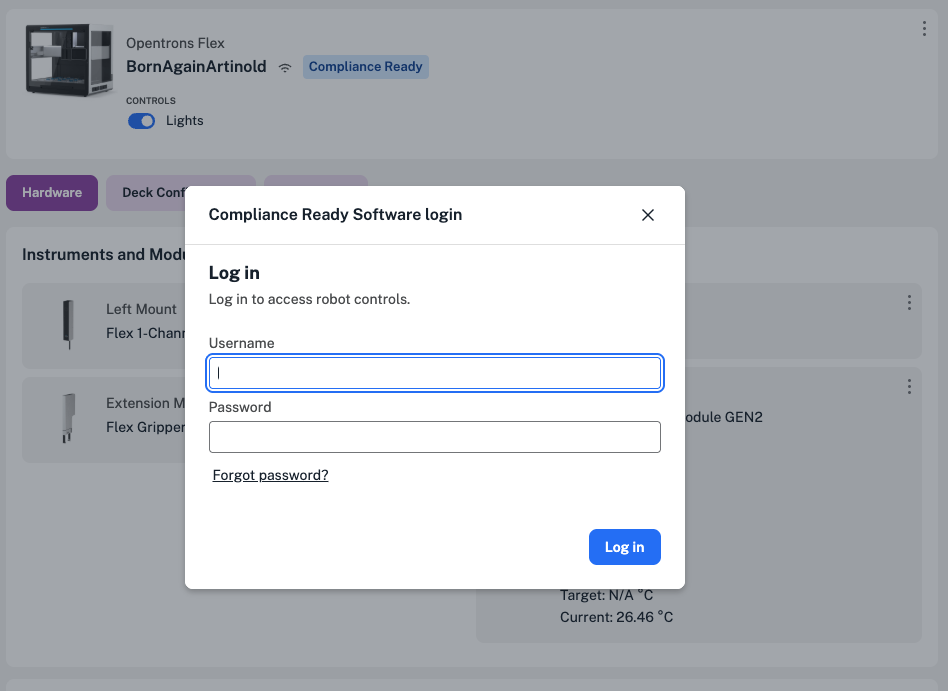
Compliance Ready Software restricts access to your Flex in both the touchscreen and the Opentrons App.
Team members that use the robot in your lab are assigned an administrator or user account and will need to log in in the app or on the touchscreen to set up and run protocols, change a module's status, and more.
Documenting actions
All users of your compliance ready Flex will be required to document their reason for completing robot actions like:
- Setting up or running a protocol.
- Attaching, detaching, or calibrating pipettes or modules.
- Updating robot settings, including software updates.
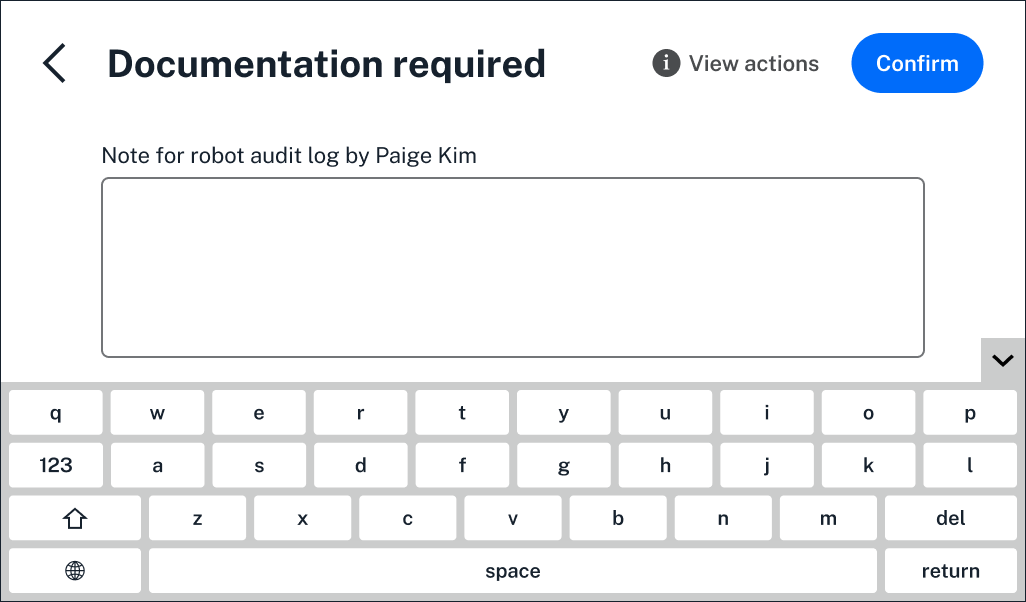
A "Documentation required" screen will appear in the Opentrons App or on the Flex touchscreen.
Users won't be able to bypass this screen, and the Flex won't complete the action until users enter documentation and click Confirm.
Running a protocol
Sending, setting up, and running protocols on the Flex all require documentation in Opentrons Flex Compliance Ready Software.
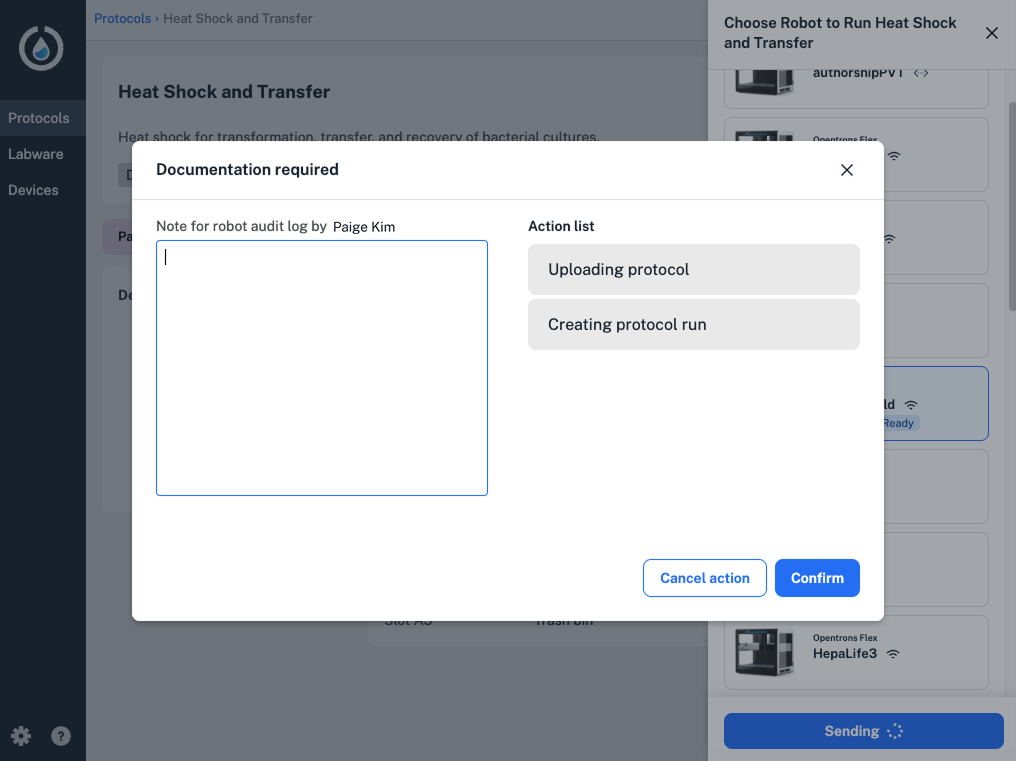
Users can be prompted to enter documentation on the Flex touchscreen or in the Opentrons App at several points during protocol setup or a run:
- Updating or confirming deck placements, including labware and liquids.
- Changing a module's state, like opening a labware latch or setting temperature.
- Applying labware offsets or starting a Labware Position Check.
- Pausing or canceling a protocol run.
- Completing a manual action, like moving labware, during a protocol run.
- Starting and completing error recovery during a protocol run.
See the full list of actions requiring documentation in the Compliance Ready Software Manual.
Completing a protocol
When a protocol finishes running, an administrator wil need to sign for the run in the Opentrons App or on the Flex touchscreen.
Signing for a run is the final checkpoint to completing the protocol run, and adds the administrator's legal name and user ID to every action captured in the protocol.
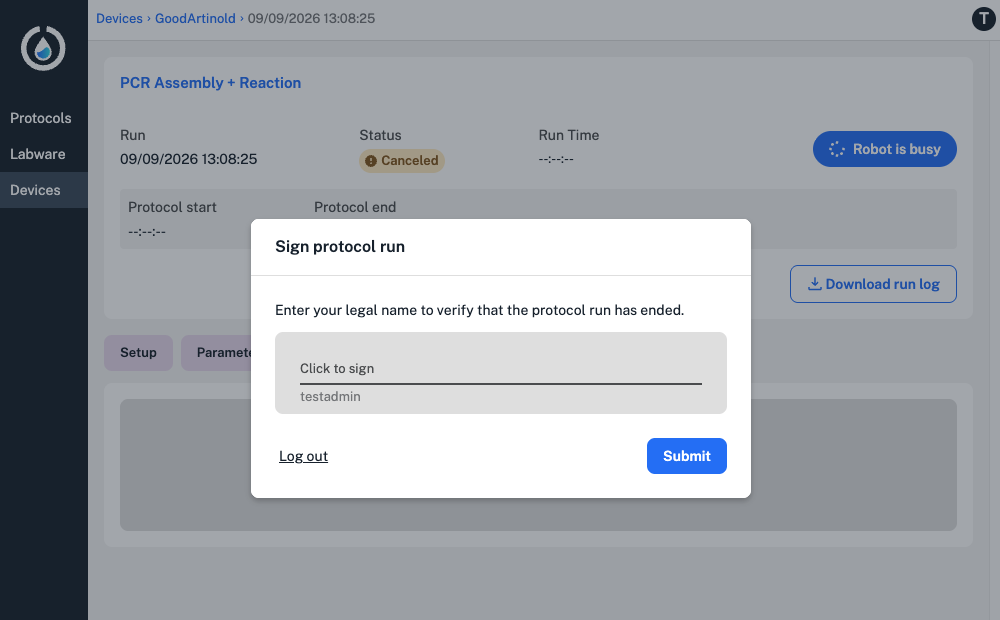
After signing, your compliance ready Flex will prompt you to download audit logs, files containing data like responsible users, timestamps, and required documentation for every robot action.