Accessing files
All Flex robots locally generate files to store information about robot actions, protocols, and system downtime. Compliance Ready Software makes some key changes to these files.
This section covers the types of files on your compliance ready Flex and how to access and manage them.
File types
On any Flex, you can view the time and date of your recent protocol runs. Compliance Ready Software adds two specific file types, audit logs and protocol run records, to store additional user and protocol information.
In total, your compliance ready Flex generates three types of files:
| Type | Description |
|---|---|
| Audit logs |
|
| Diagnostic files |
|
| Protocol run records |
|
Flex generates a protocol run record for each individual protocol run. If you run a PCR protocol 10 times, you'll have 10 different protocol run records.
Audit logs are grouped in a period. Log periods end after the Flex completes each protocol run or whenever the Flex boots, like after a robot software update.
The files your Flex generates are never viewed or stored by Opentrons. It's your lab's responsibility to manage these files, including downloading and storing in a secure location.
File manager
You'll access each file type using the file manager in either the Opentrons App or on the Flex touchscreen.
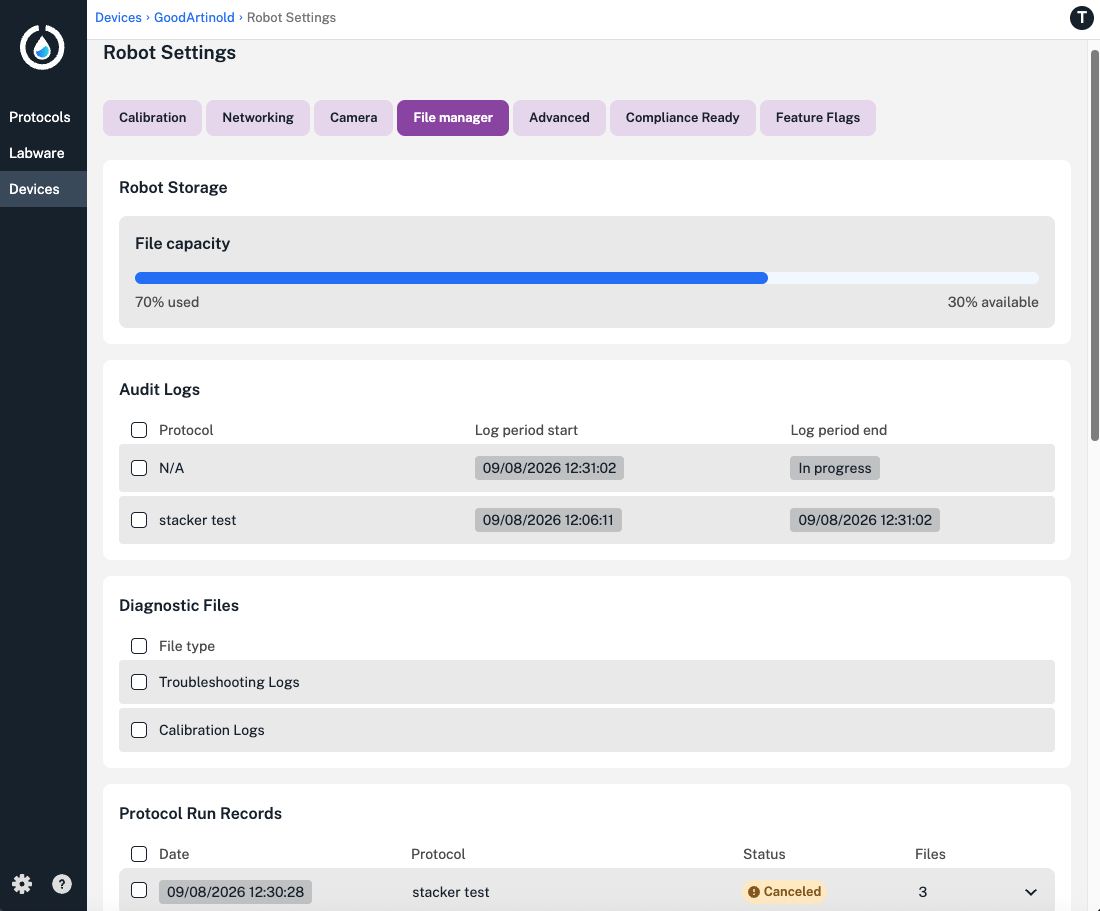
In the Opentrons App, select the File manager tab in your Flex's robot settings page. Here, you'll be able to see the robot's current storage capacity and available files from each category.
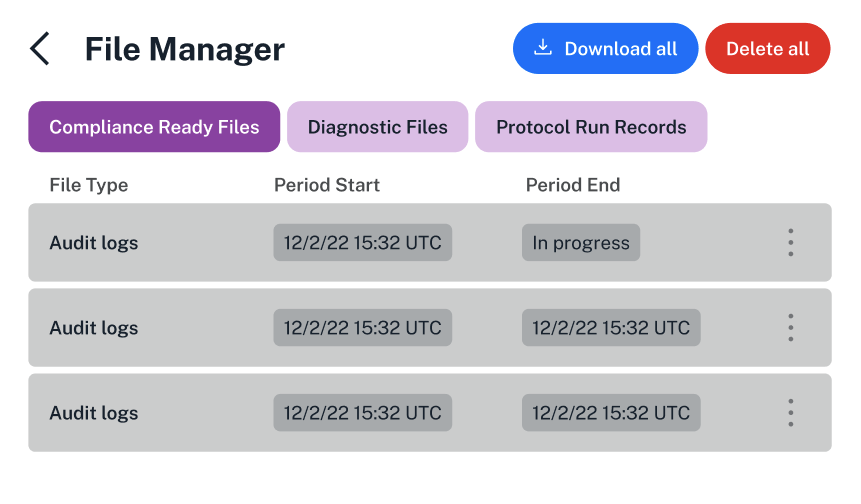
On the Flex touchscreen, tap Settings, then choose File Manager from the list of options. Select each tab to view audit logs, diagnostic files, or protocol run records.
File storage
You'll use the file manager in the Opentrons App or on the Flex touchscreen to download and delete files from your Flex.
By default, the Flex doesn't store audit logs locally—you'll need to download them from the Opentrons App after each run to save space. Administrators can change this setting.
You can also choose to download protocol run records and diagnostic files after every run, or wait for the Flex to remind you.
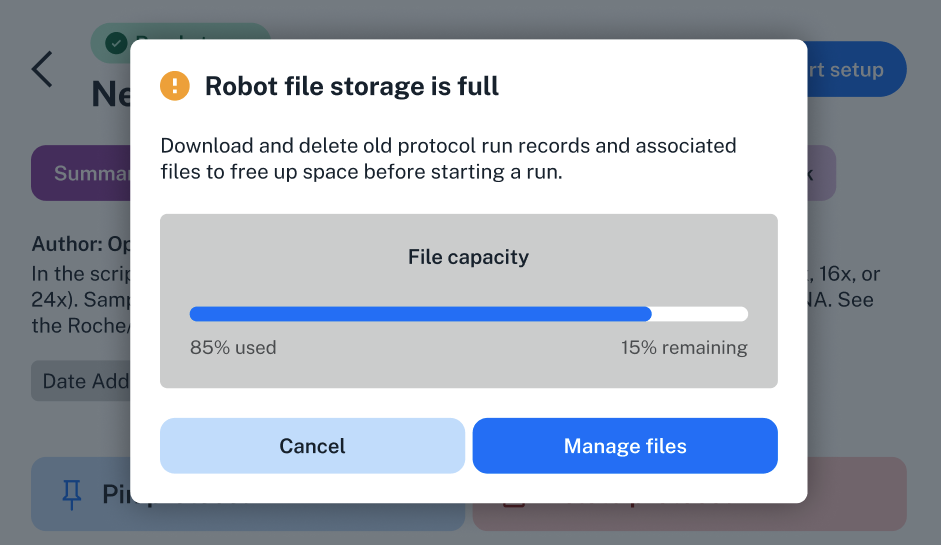
You'll see reminders on the Flex touchscreen and in the Opentrons App to download files when the Flex nears its storage capacity.
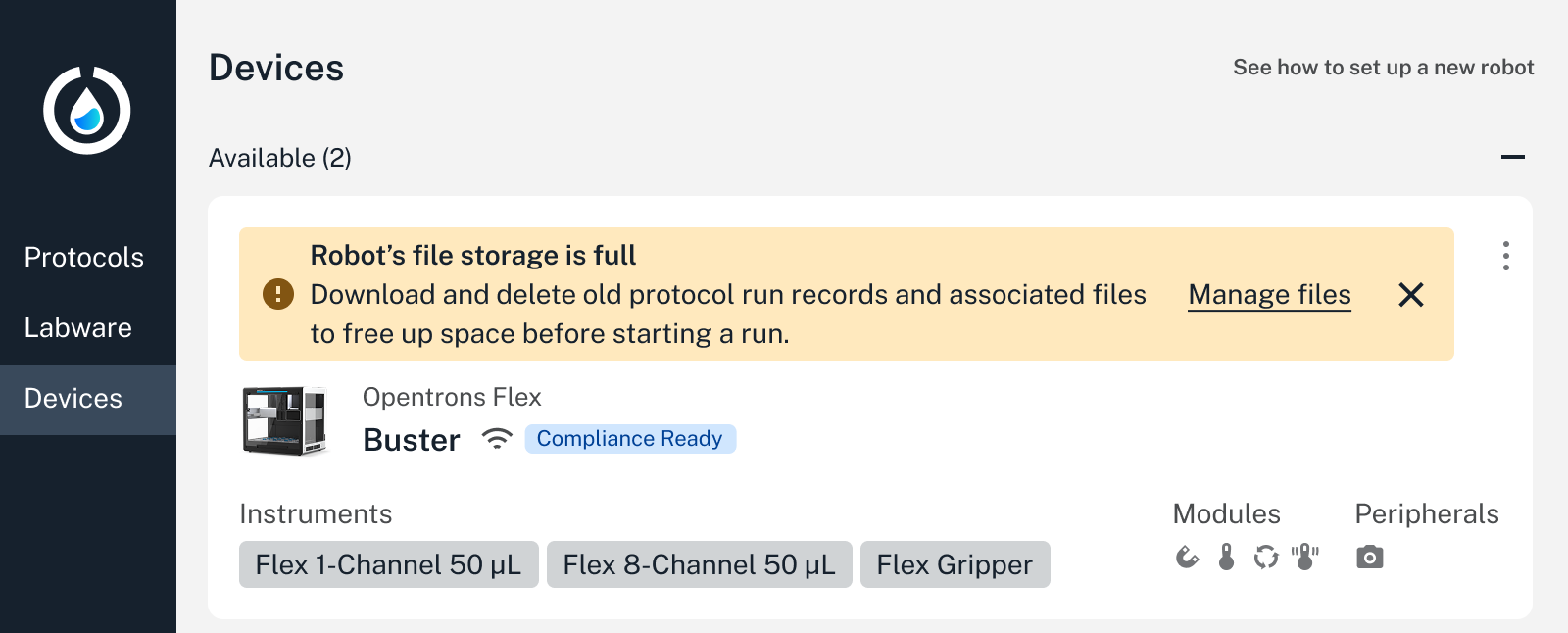
While storage is full, you won't be able to send or start new protocols on your Flex.
Download and delete files
All users can download files, including audit logs, from your compliance ready Flex, even before logging in to Compliance Ready Software. However, you'll need to log in to delete files.
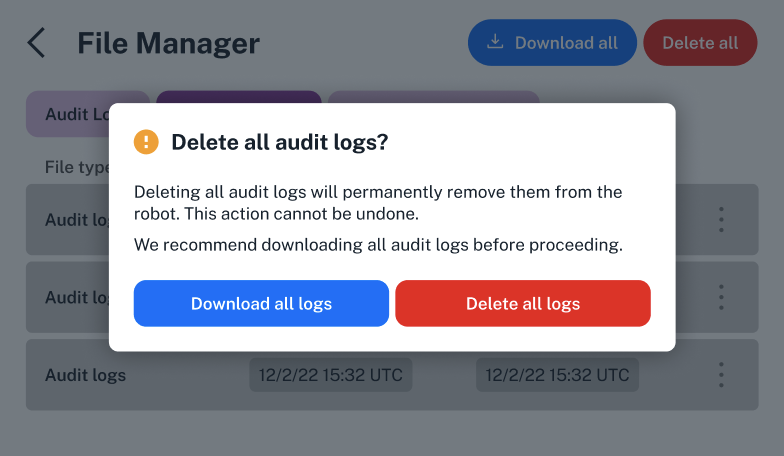
To be safe, deleting files requires you to download them, even if they've already been downloaded. Only administrators can delete files.
Your files download as:
- Audit logs: A folder for each download, containing a
.zipfile with.jsonfiles for each log period. - Diagnostic files: An individual
.jsonfile for calibration logs or a.zipfile for troubleshooting logs. - Protocol run records: A
.zipfile for each run record.
By default, protocol run records are automatically deleted when the Flex's storage reaches its maximum of 20 run records. Administrators can change this setting.
This section takes a look at downloading and deleting files in the Opentrons App and on the Flex touchscreen.
Opentrons App
In the file manager in the Opentrons App, click the check boxes for individual files in each section. Then, click at the top of each section to Download selected or Delete selected. Deleting files is irreversible, so you'll need to confirm and document the deletion action.
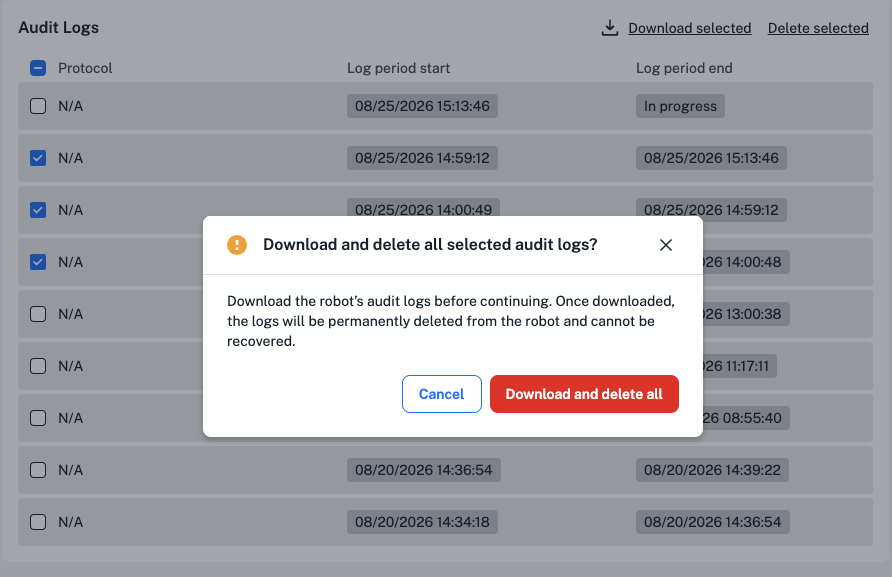
In the app's file manager, you can also click the arrow on the right to expand each protocol run record and see the files that are included:
- The Python protocol file.
- A protocol run log.
- Labware offset data.
- Any images or CSV files generated during the protocol run.
You can use compliance ready settings to choose a default location for file downloads from the Opentrons App, or choose a location in your computer's files each time.
Flex touchscreen
If you'd like to download files using the Flex touchscreen, you'll need to attach an external storage device. Your compliance ready Flex supports USB storage devices via a USB port.
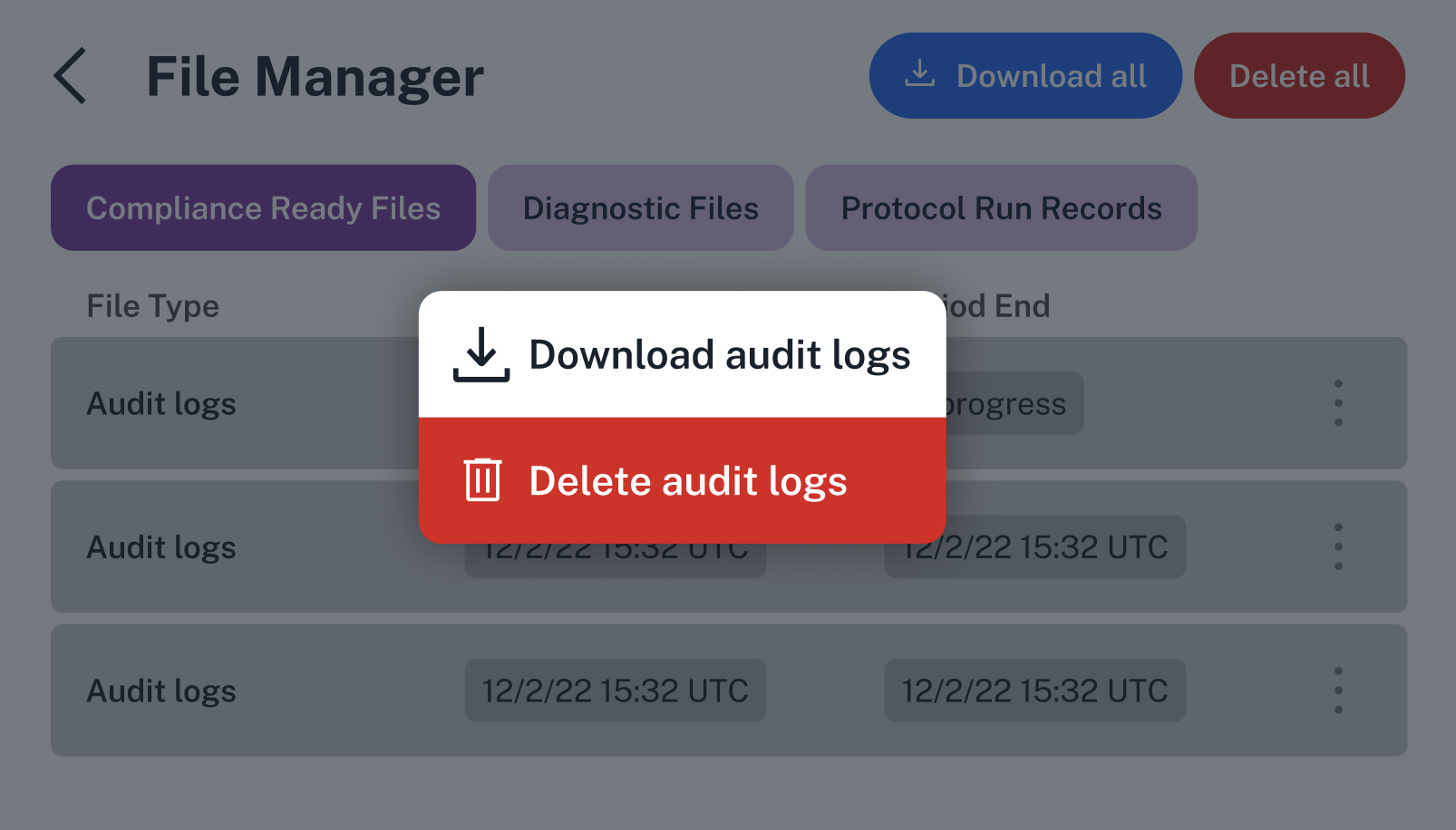
On the Flex touchscreen, choose the file type you'd like to manage. Then, choose which files to download:
- Tap Download all in the top right.
- Tap the three-dot menu on the right for an individual file, then choose whether to download or delete.
Note
Remember that by default, your Flex does not store audit logs locally to save space. Administrators can update this setting to download these files from the Flex touchscreen.
Like the Opentrons App, the Flex touchscreen includes a reminder to make sure you're ready to delete files. For safety, you're required to download your selected logs before deleting every time, even if you've already downloaded them.